 Documentation
n8n AI Agents
Introduction
n8n is an open-source, low-code workflow automation platform that uses a visual, node-based system to connect over 400 applications and APIs.
Its AI Agent functionality allows users to build autonomous workflows powered by Large Language Models (LLMs) that can make decisions, interact with apps, and execute complex, multi-step tasks without constant human input.
While standard n8n workflows follow a linear path (Trigger → Action → Action), the AI Agent functionality introduces autonomy.
What is an AI agent?
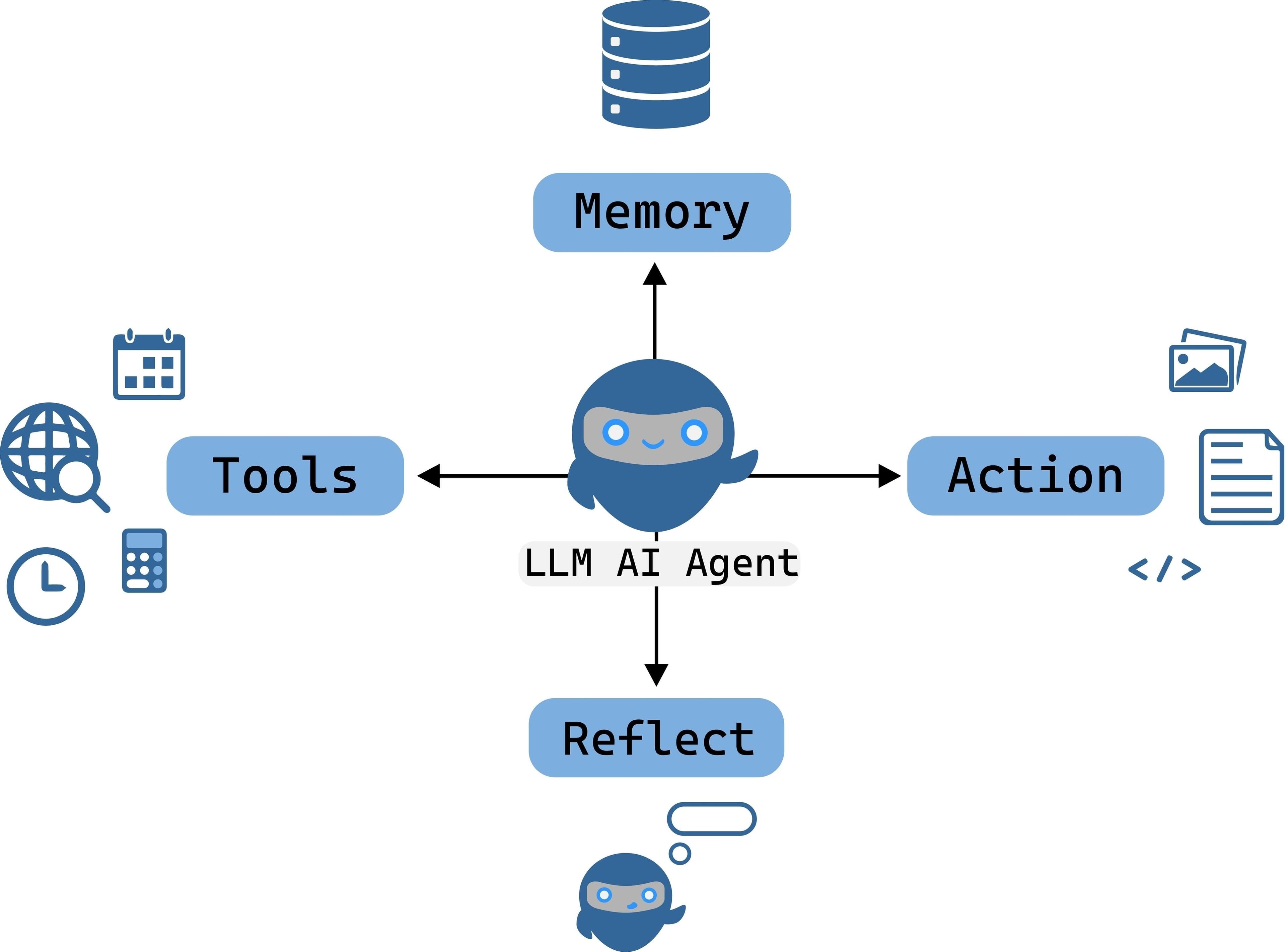
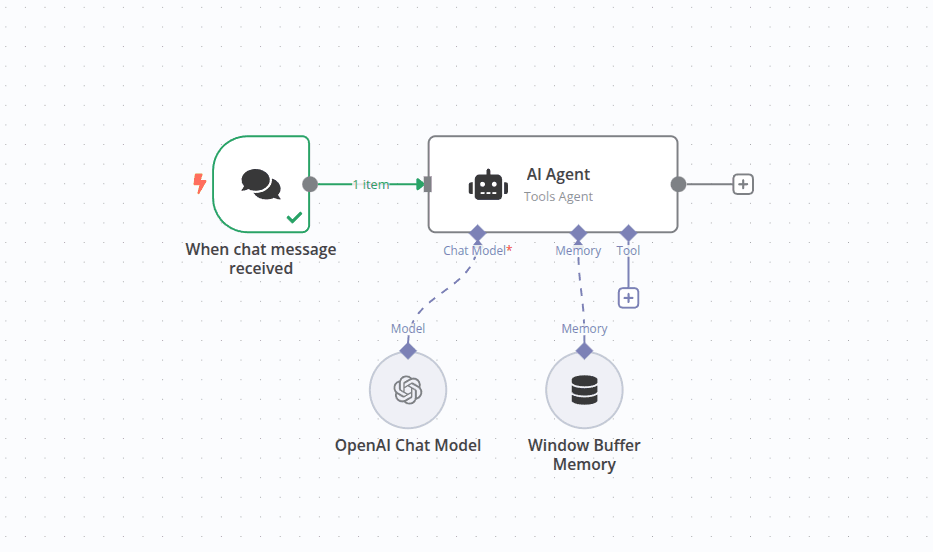
In n8n, an AI Agent is built visually. The AI Agent Node sits at the center, acting as the controller. You connect the “Brain” (LLM Model), “Tools,” and “Memory” directly to the agent node inputs. The workflow typically starts with a trigger, such as a Chat Trigger or Webhook.
Instead of following a strict set of pre-defined steps, an Agent uses a Large Language Model (LLM) to:
- Understand natural language input.
- Reason about the best way to solve a problem.
- Select Tools (such as search, database lookups, or API calls) to gather information.
- Execute complex, multi-step tasks without constant human intervention.
Accessing n8n
n8n is hosted on our Kubernetes/Rancher infrastructure.
Prerequisites
- Account: A valid MetaCentrum account is required.
- Platform: Access via Rancher https://rancher.cloud.e-infra.cz/.
Need an Account? If you are a member of an academic or research institution in the Czech Republic (within e-INFRA CZ) and do not have an account, please request a MetaCentrum account here.
For issues or assistance, please contact support at k8s@cerit-sc.cz.
Deployment guide: Start your own instance
Log in to Rancher
- Navigate to the Rancher Dashboard: https://rancher.cloud.e-infra.cz/dashboard/
- Click
Log in with Shibboleth. - Select
e-INFRA CZ AAIand choosee-INFRA CZ passwordfrom the list of organizations. Log in using your MetaCentrum credentials.
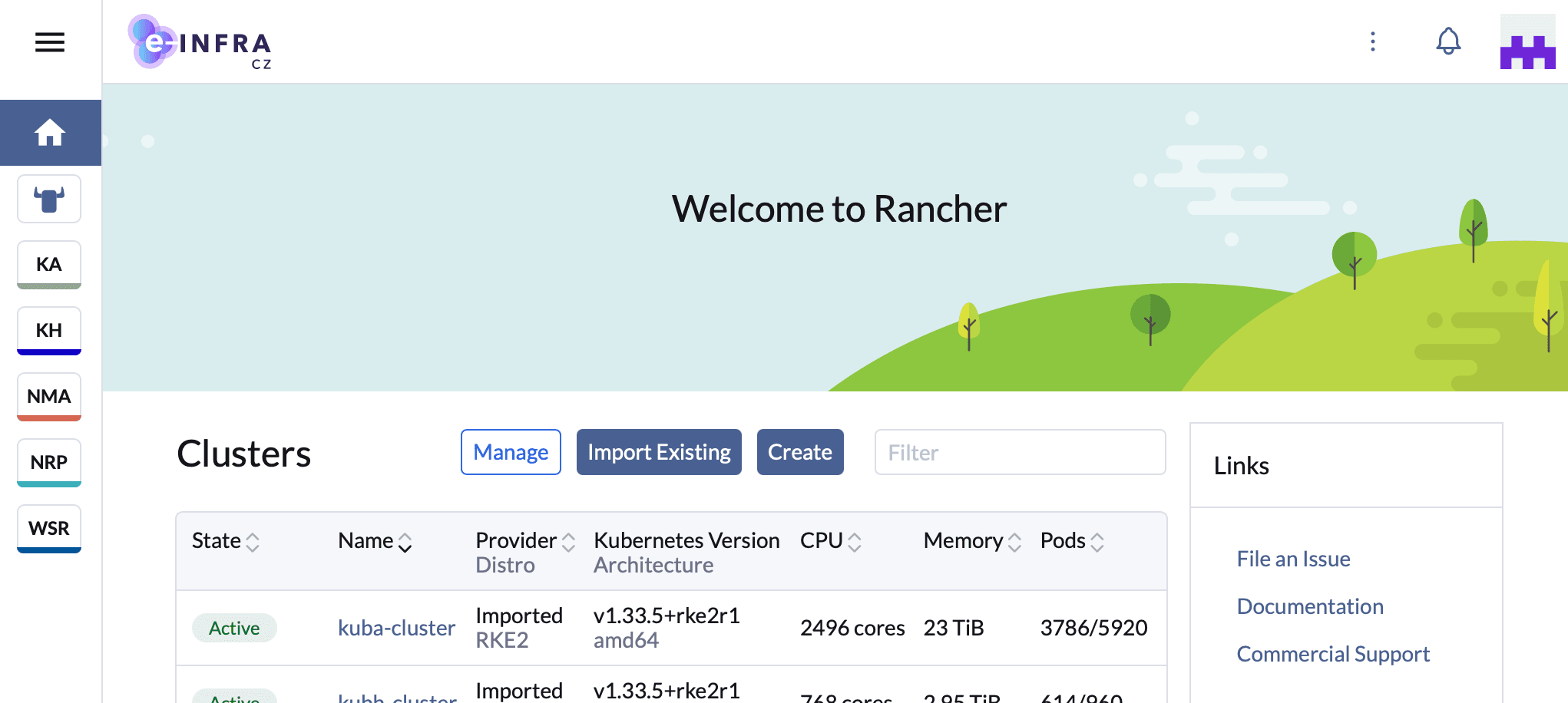
Locate the n8n application
- Once on the Rancher dashboard:
-
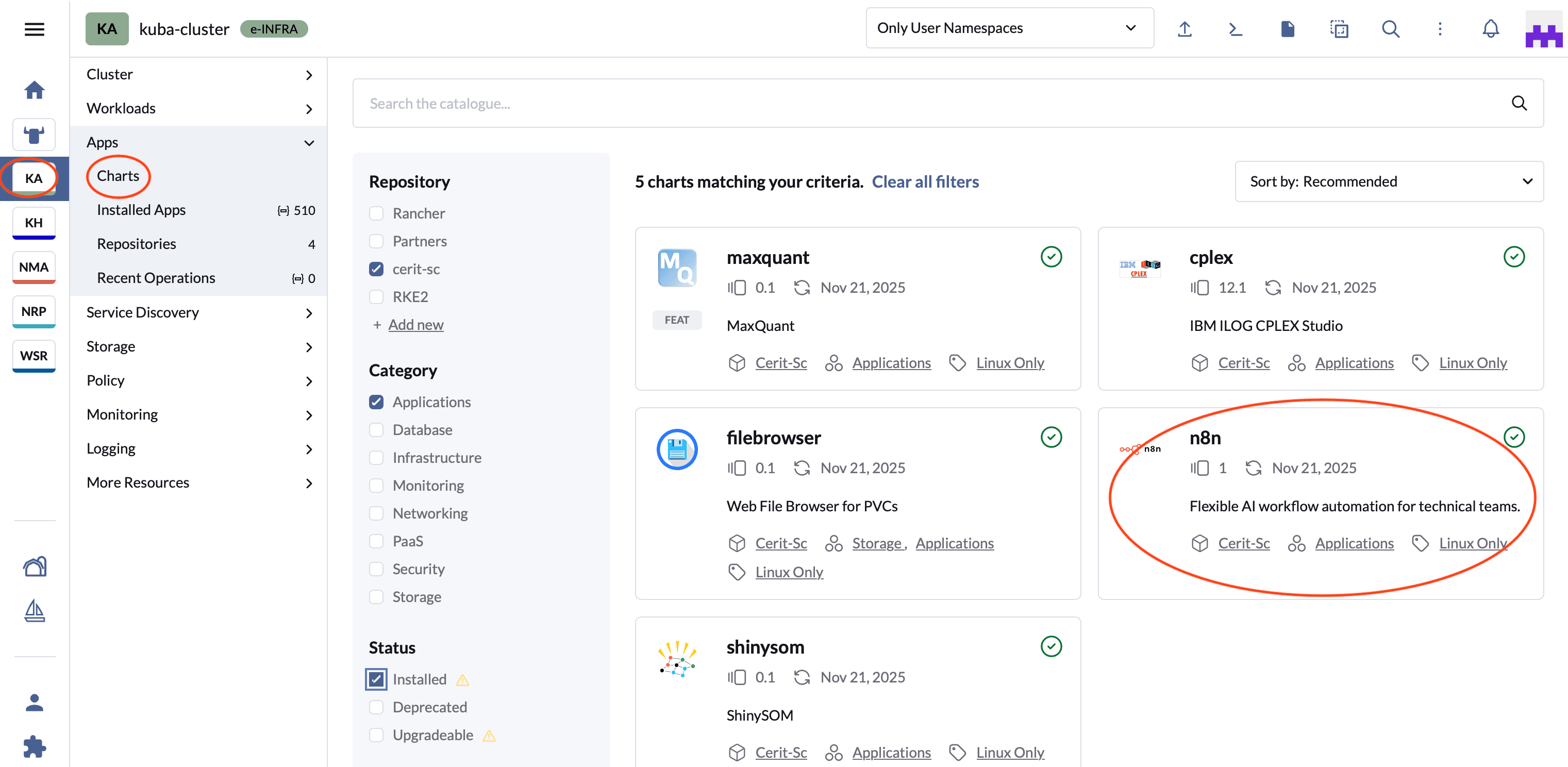
Select KA → Apps/Charts.
-
Search for or select
n8n.
Configure the instance
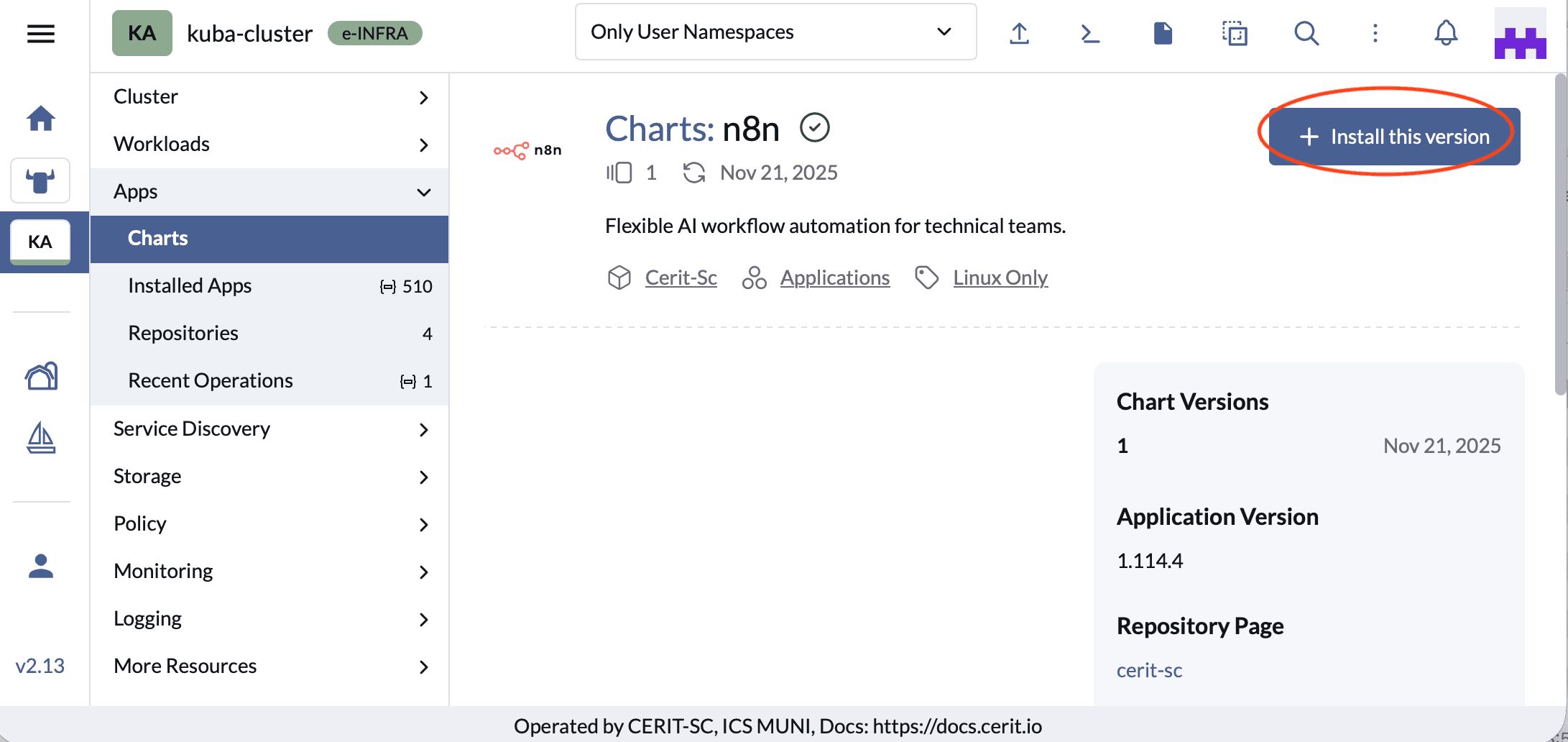
- Click
Install.
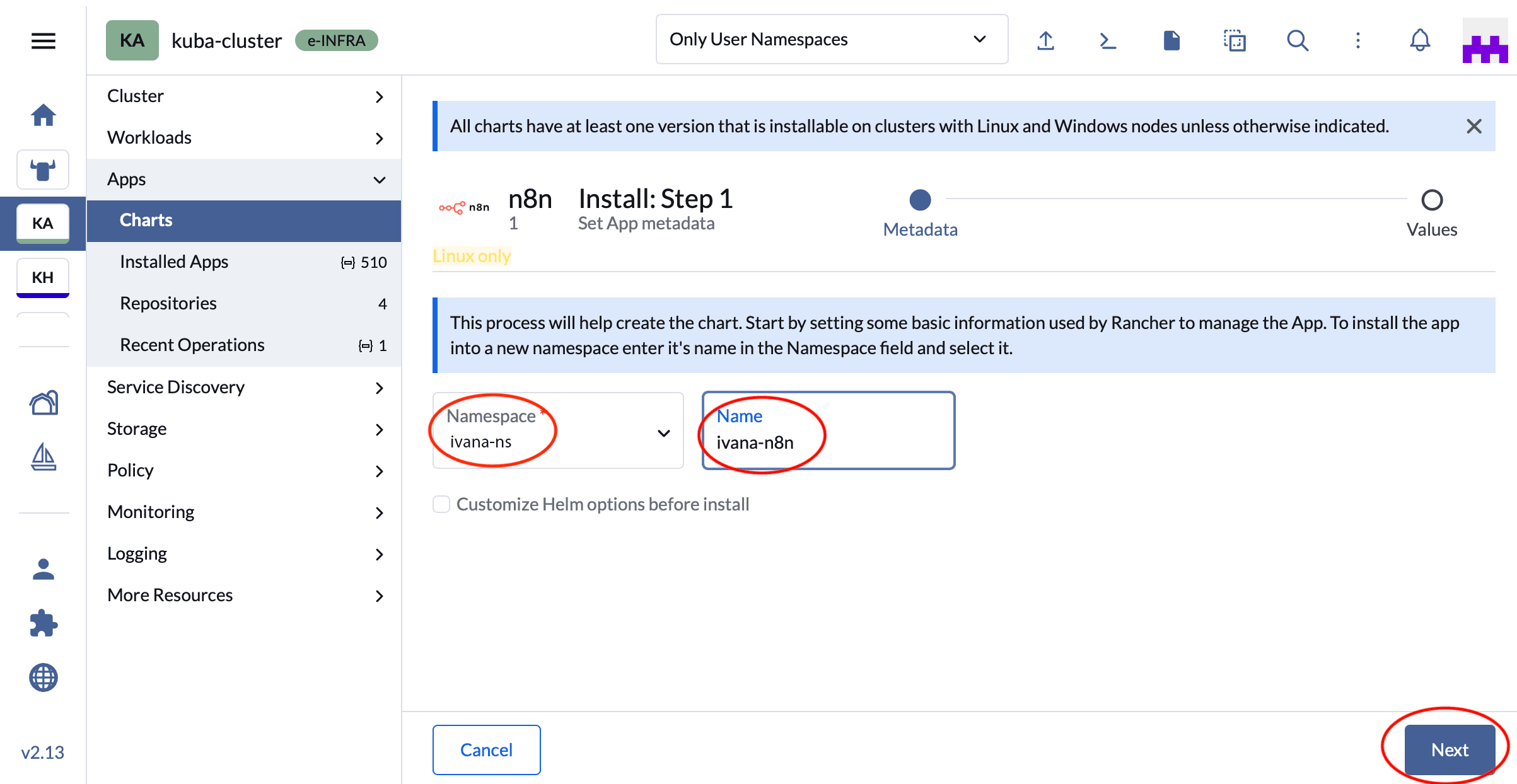
- Name your instance: Enter the
Namespace(username-ns) and a uniqueNamefor your deployment (e.g., username-n8n). Remember these values and clickNext.
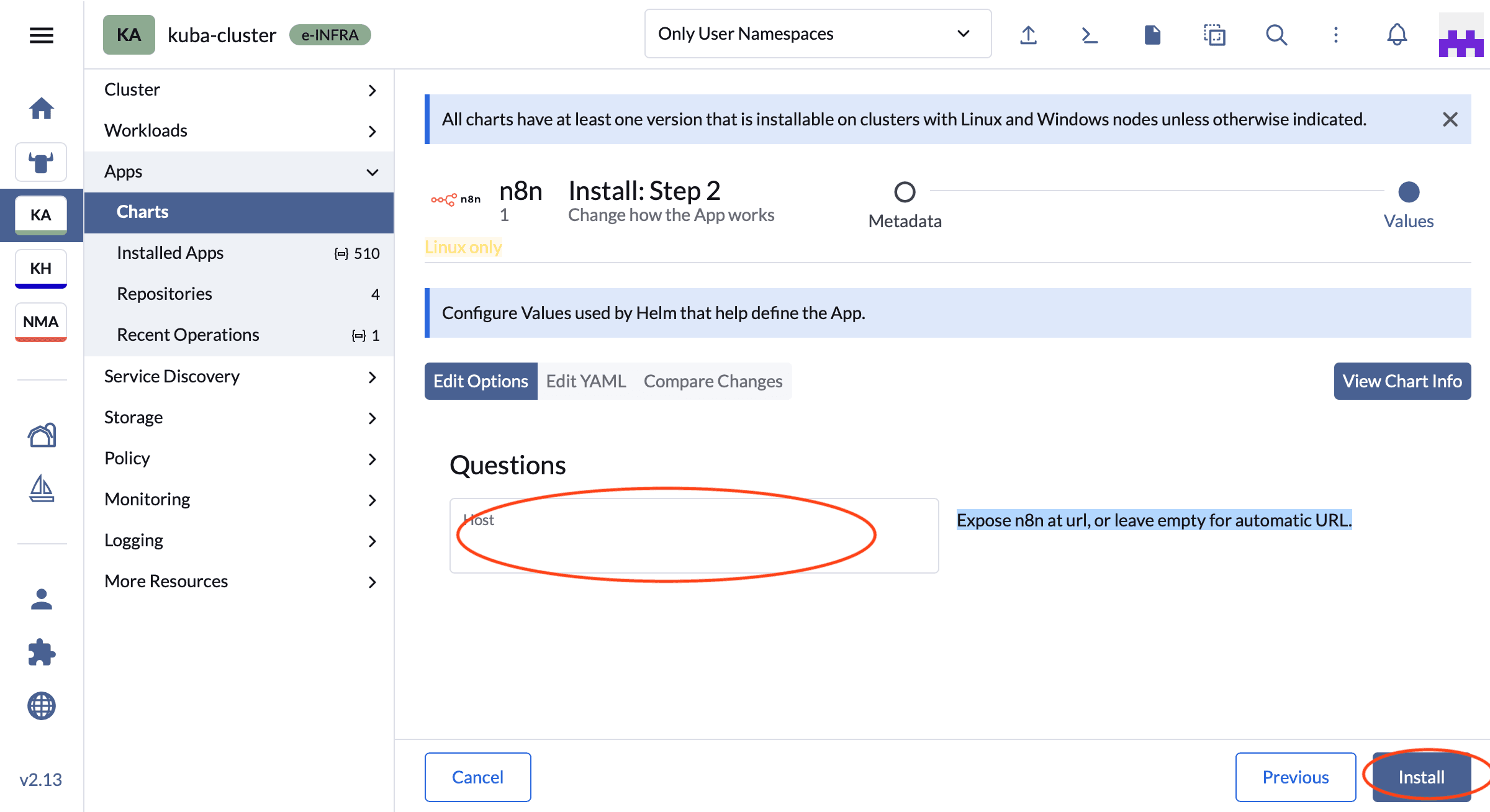
- Set the URL: You may enter a specific URL suffix or leave it empty for an automatically generated URL. Click
Install.
Finalize installation
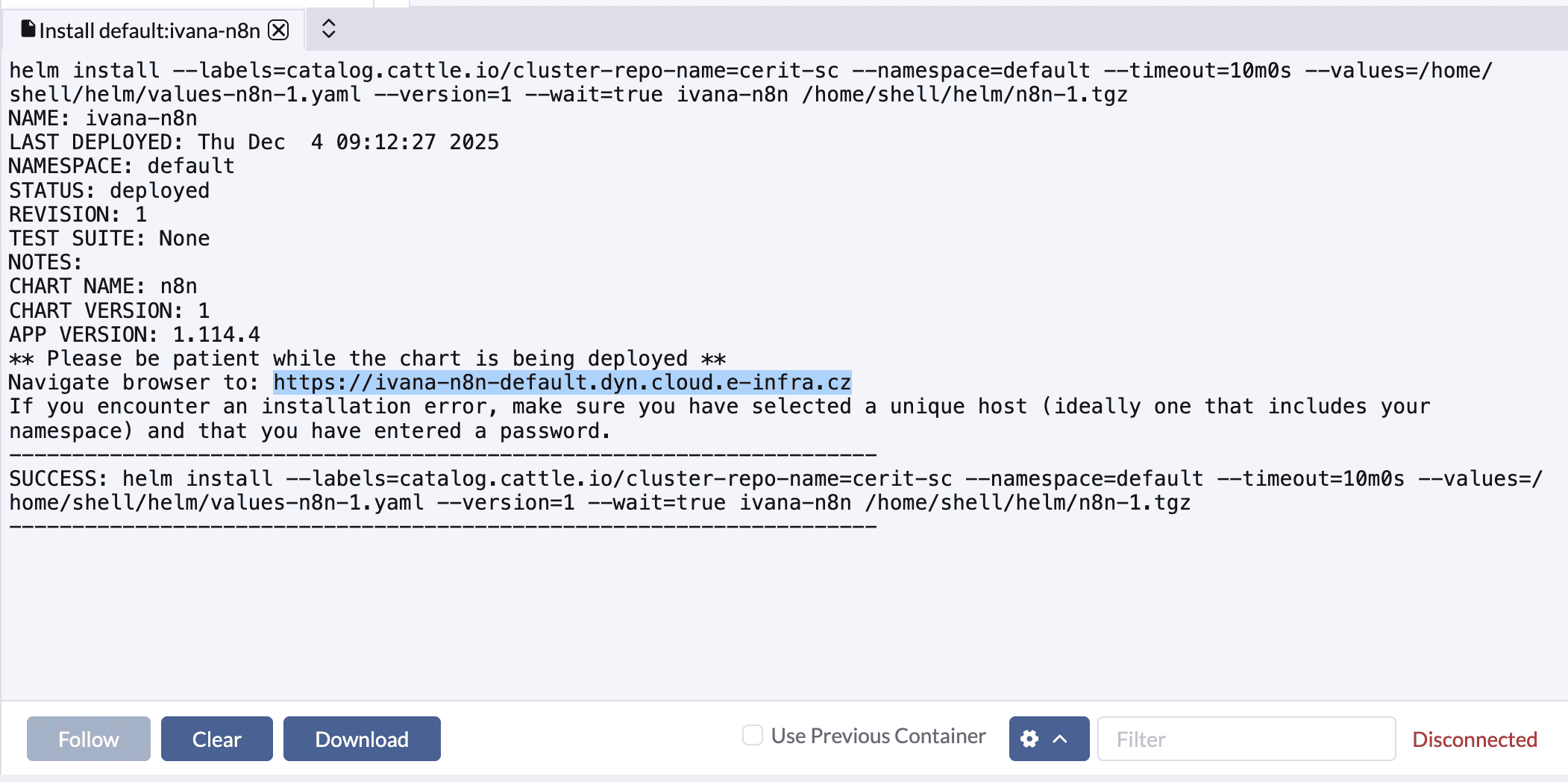
Monitor the installation logs. This process may take several minutes, depending on available resources.
Important: When the installation completes, the logs display your unique Access URL. Copy and save this URL immediately.
First run configuration
- Open your browser and navigate to the Access URL saved in the previous step.
- Create an admin account: You will be prompted to set up an email and password.
Note: This account is local to your n8n instance and is separate from your MetaCentrum login.
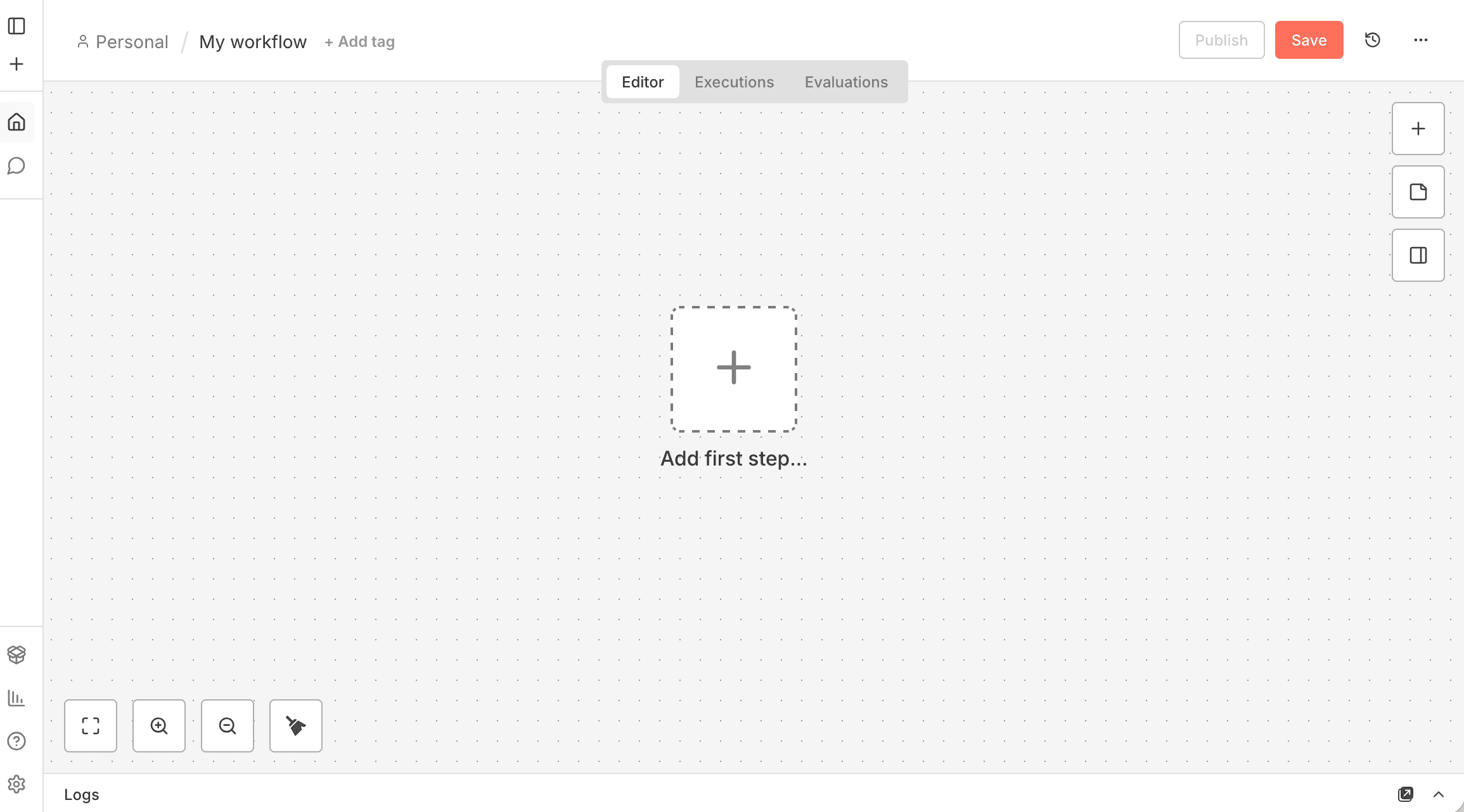
Once logged in, the n8n canvas appears. You can now start building workflows.
Managing resources — Terminating
To ensure fair usage and availability for all researchers, please manage your instance responsibly.
Deleting your instance
If you are no longer using n8n, shut it down to free up resources:
- Return to the Rancher Dashboard: https://rancher.cloud.e-infra.cz/dashboard/.
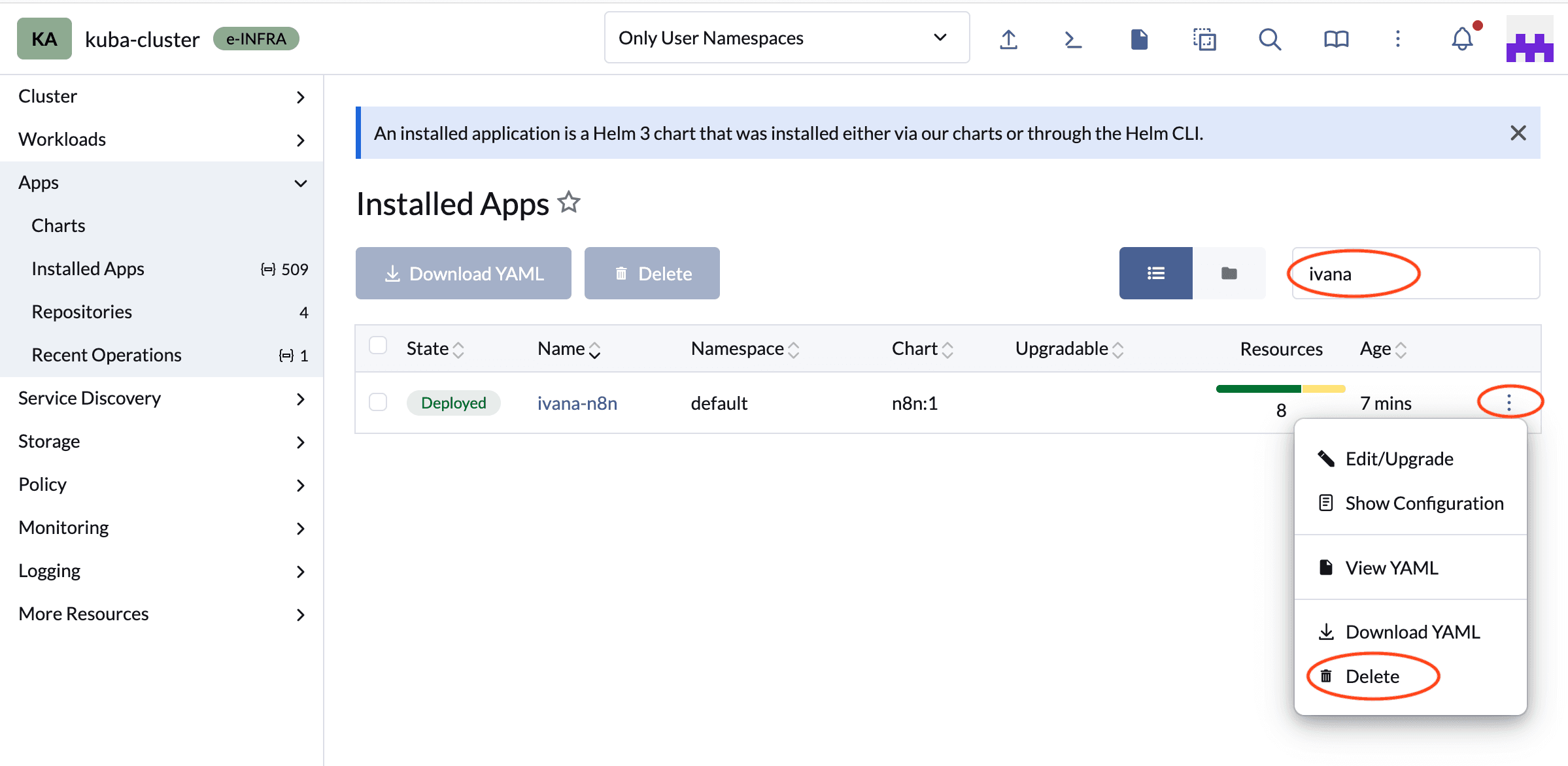
- Locate your n8n instance in the list.
- Click the three dots on the right side of the row.
- Select Delete.
AI model availability
We provide API access to high-performance models for your agents.
⚠️ Service Availability Notice:
Please be aware of the following infrastructure constraints:
- Maintenance: The underlying hardware may require periodic maintenance. We currently lack backup infrastructure of comparable scale.
- Priority Tasks: During urgent priority tasks requiring this hardware, model availability may be temporarily suspended.
- Notifications: Advance notice of interruptions will be provided on this page and within the chat interface.
How to generate an API key (our local OpenAI models)
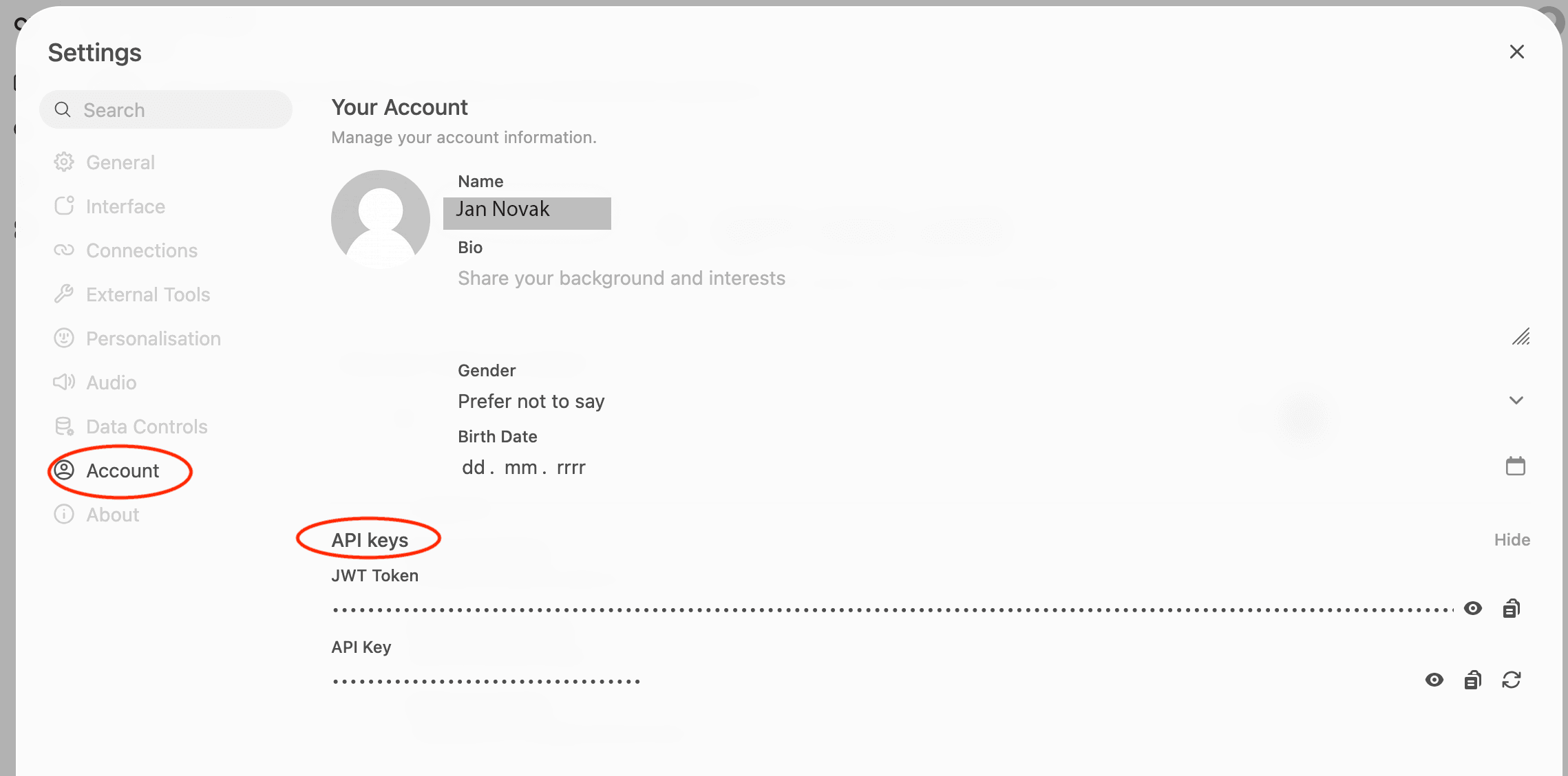
- Open https://chat.ai.e-infra.cz/ in your browser.
- Open the
Settingsmenu →Account→API keys. - Create a new API key and copy the generated token.
How to build an agent
Step 1: The trigger
To interact with your agent, you need a trigger. For testing and building chatbots, the Chat Trigger is the standard starting point.
For backend automation (such as processing emails), use a Webhook or Email Trigger instead.
Step 2: Connecting the brain
Connect a Chat Model node (e.g., OpenAI) to the “Model” input of the Agent node. Our local models can be accessed using the token generated in the previous chapter.
- Credential: You will need an API key from the provider.
- Model Selection: Choose a model capable of reasoning.
Step 3: Configuring the agent
The AI Agent Node requires specific configuration to function correctly:
| Setting | Recommendation |
|---|---|
| Agent Type | Select Tools Agent. This is the most versatile type that can use external tools. |
| Prompt Source | Usually Connected Chat Trigger or Define below if using a webhook. |
| System Message | CRITICAL. This is where you define the persona. Ex: “You are a helpful math assistant. Always use the calculator tool.” |
Step 4: Empowering with tools
Without tools, an LLM is just a text generator. Tools give it the ability to perform actions. You can connect:
- Pre-built Tools: Calculator, Wikipedia, Bing Search
- Custom Tools: Any n8n workflow can be converted into a tool using the “Call Workflow” tool.
Step 5: Managing memory
Window Buffer Memory: Keeps a “sliding window” of the last K messages. Best for: Keeping token costs low while maintaining immediate context.
Simple Memory: Stores the entire conversation history in execution RAM. Best for: Short, complex sessions where every detail matters.
Without a memory node connected, the agent treats every message as a brand new conversation.
Example: Adding a calculator to an OpenAI‑powered chat agent (with our local models)
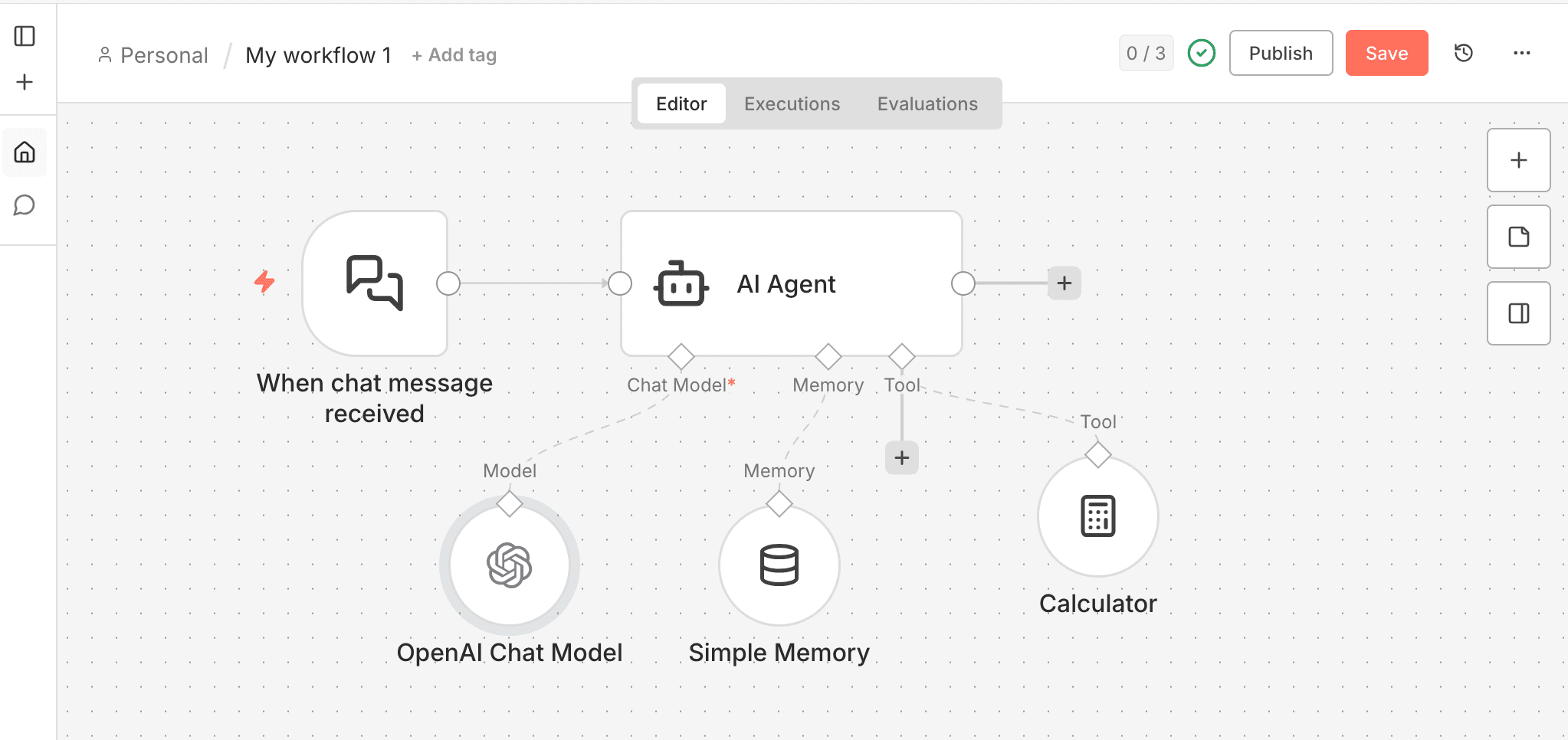
- Add an AI agent
- Open the Nodes panel → click Add Node → search for AI Agent.
- Drag the node onto the canvas.
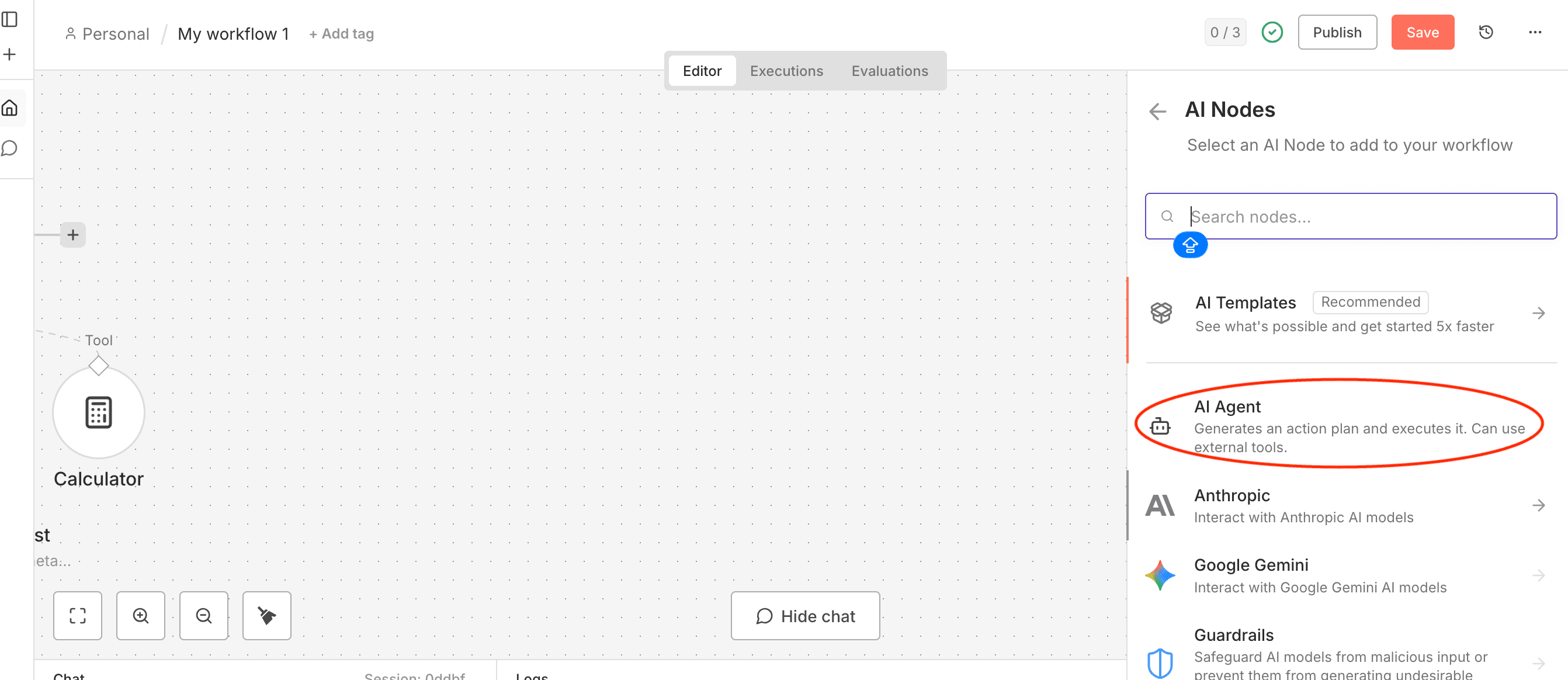
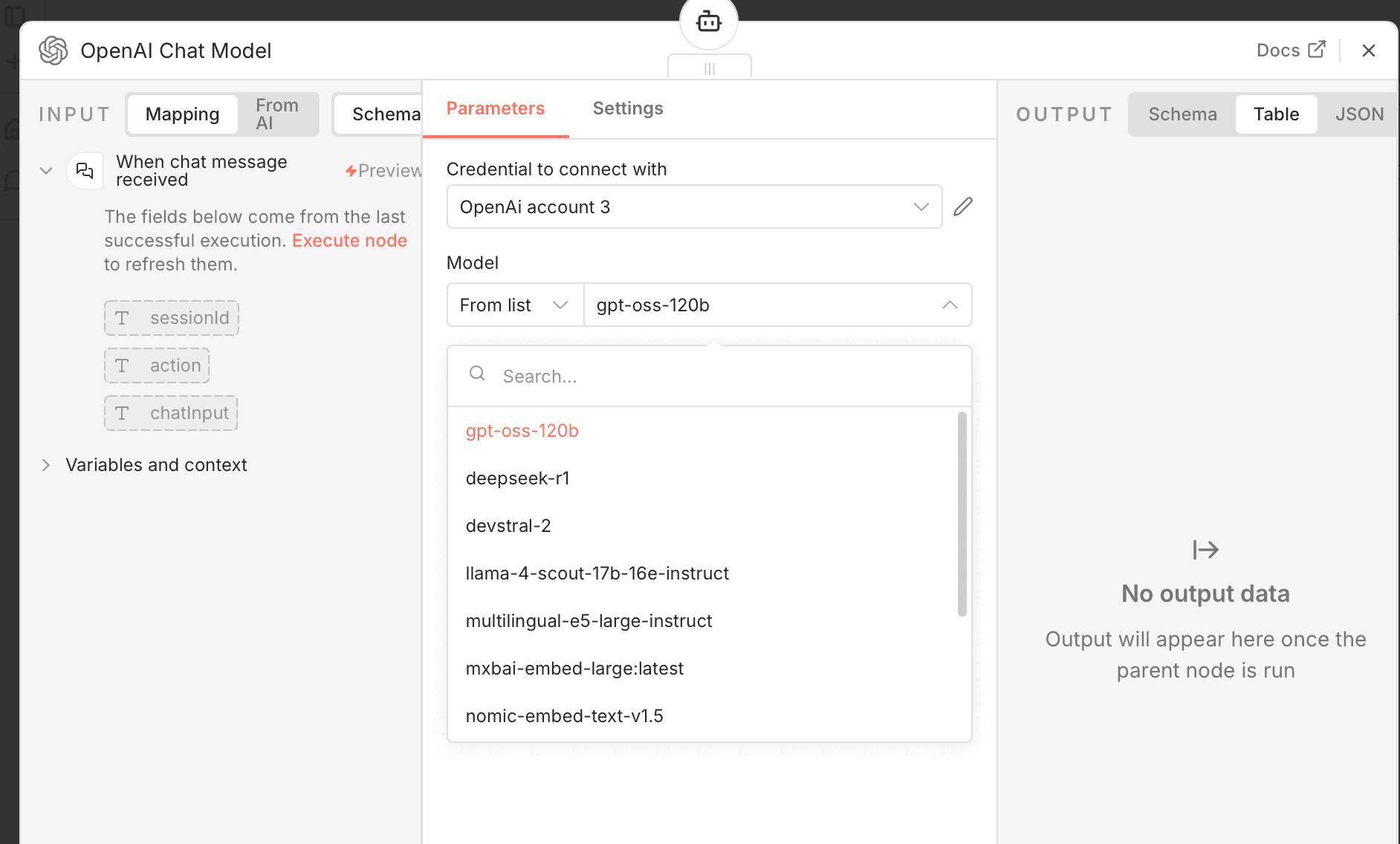
- Connect an OpenAI Chat model
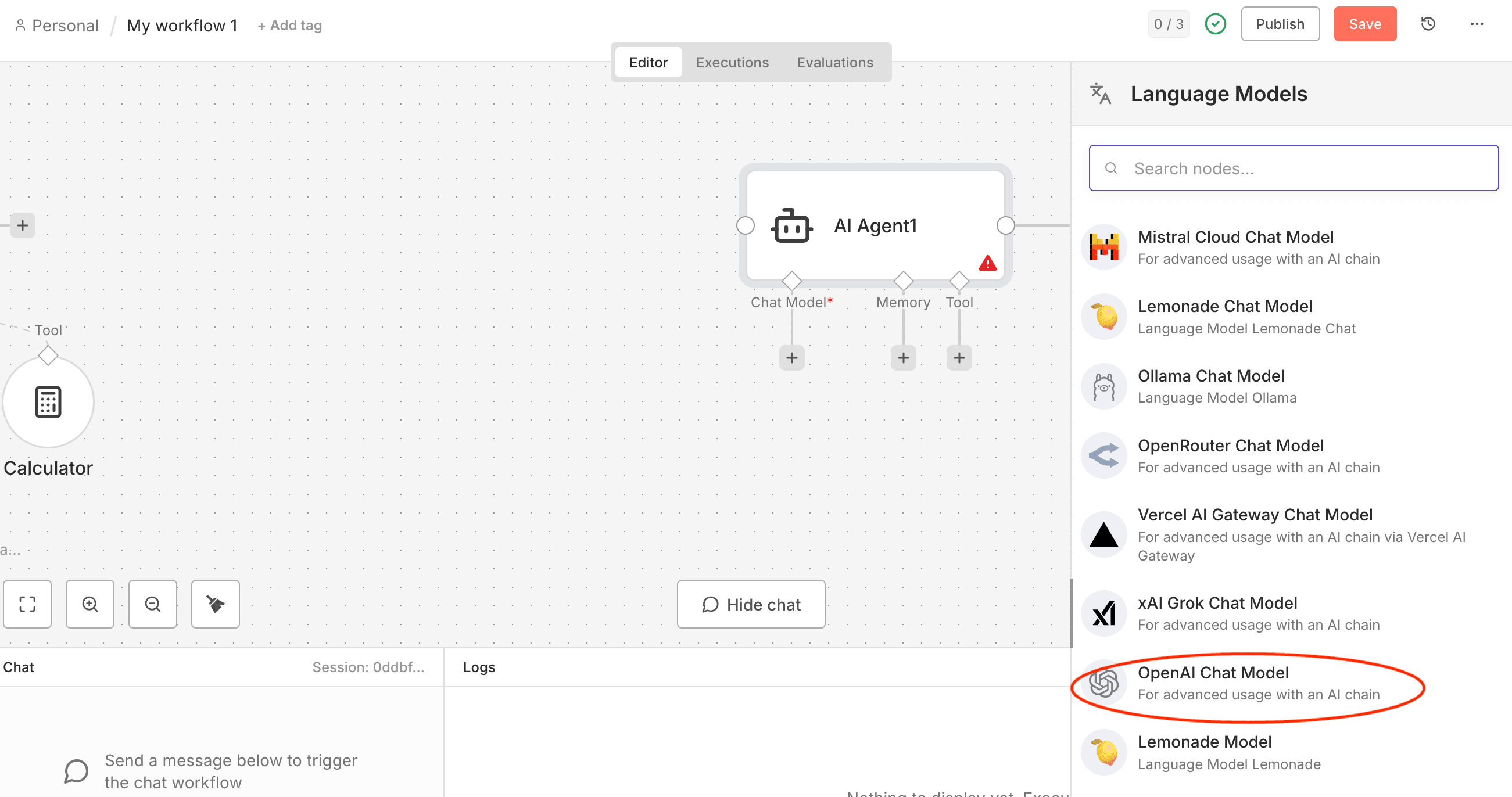
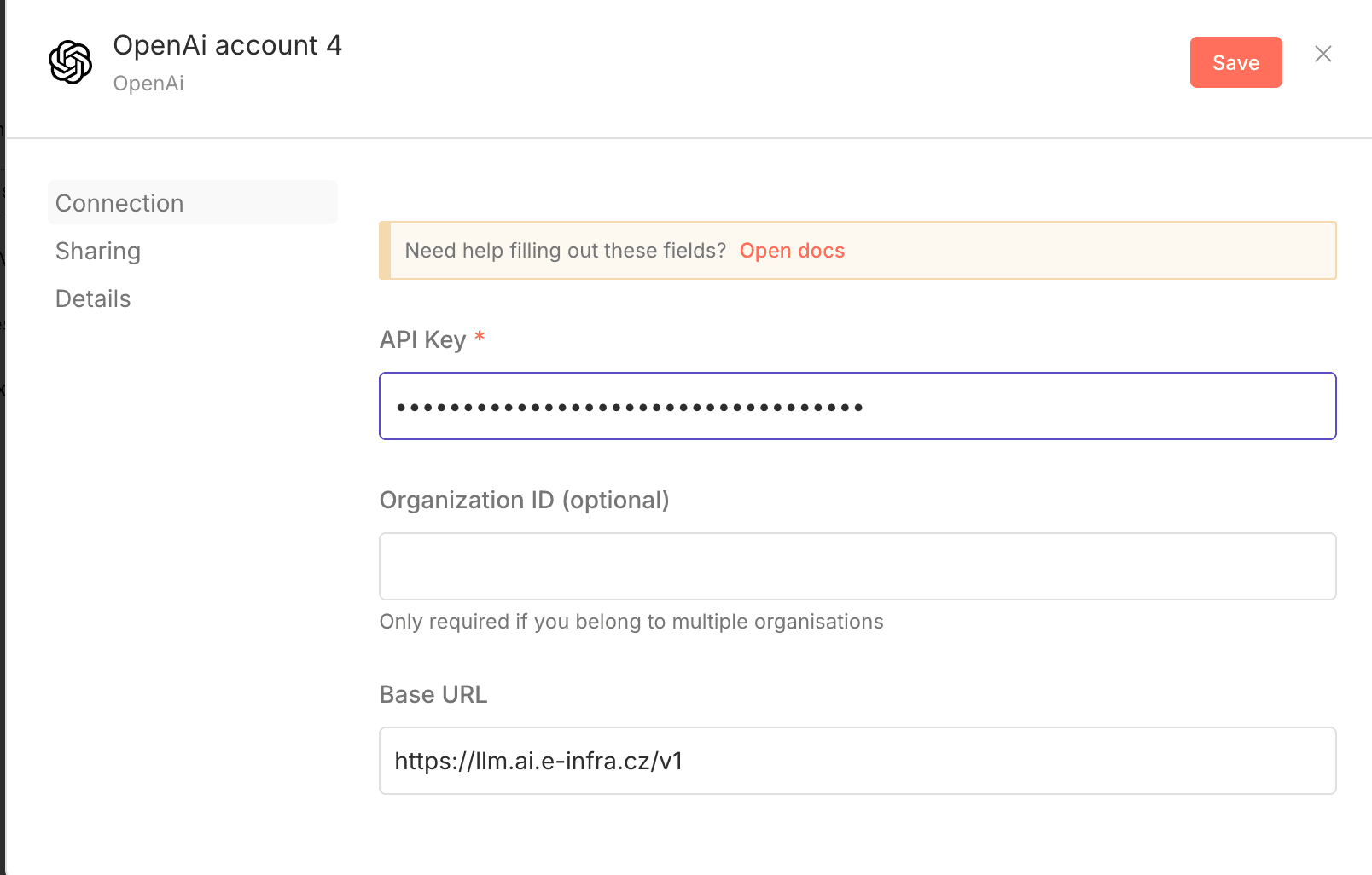
- Configure the authentication for a local model
| Field | Value |
|---|---|
| API Key | Paste the token you generated earlier |
| Base URL | https://llm.ai.e-infra.cz/v1 |
| Model | Pick the desired model (e.g., GPT‑OSS‑120b) |
- Add a
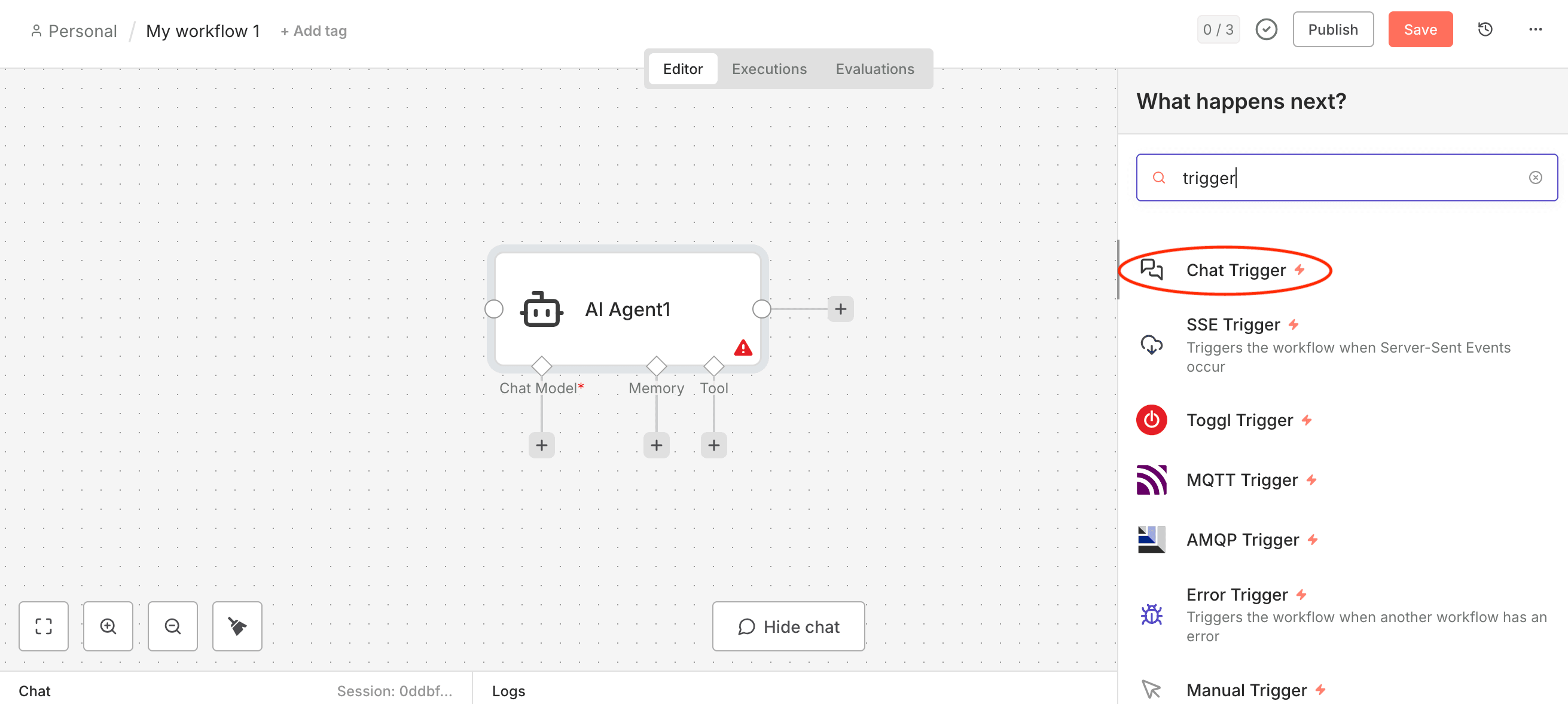
Chat trigger
The trigger starts the workflow when a user sends a message.
- From the Nodes panel, add Chat Trigger.
- Connect its output to the AI Agent node’s input.
- Similarly, add
Simple memoryandCalculator
- Simple Memory stores the conversation context so the model can reference previous messages.
- Calculator handles arithmetic requests from the LLM. Connect them in the order: Chat Trigger → AI Agent → Simple Memory → Calculator → (optional) response node.
- Test the workflow
- Open the Chat Trigger interface (or use the integrated test panel).
- Type a straightforward math request, e.g., “What is 5 × 5?”.
- The workflow should route the request to the Calculator, return the answer, and display it in the chat window.
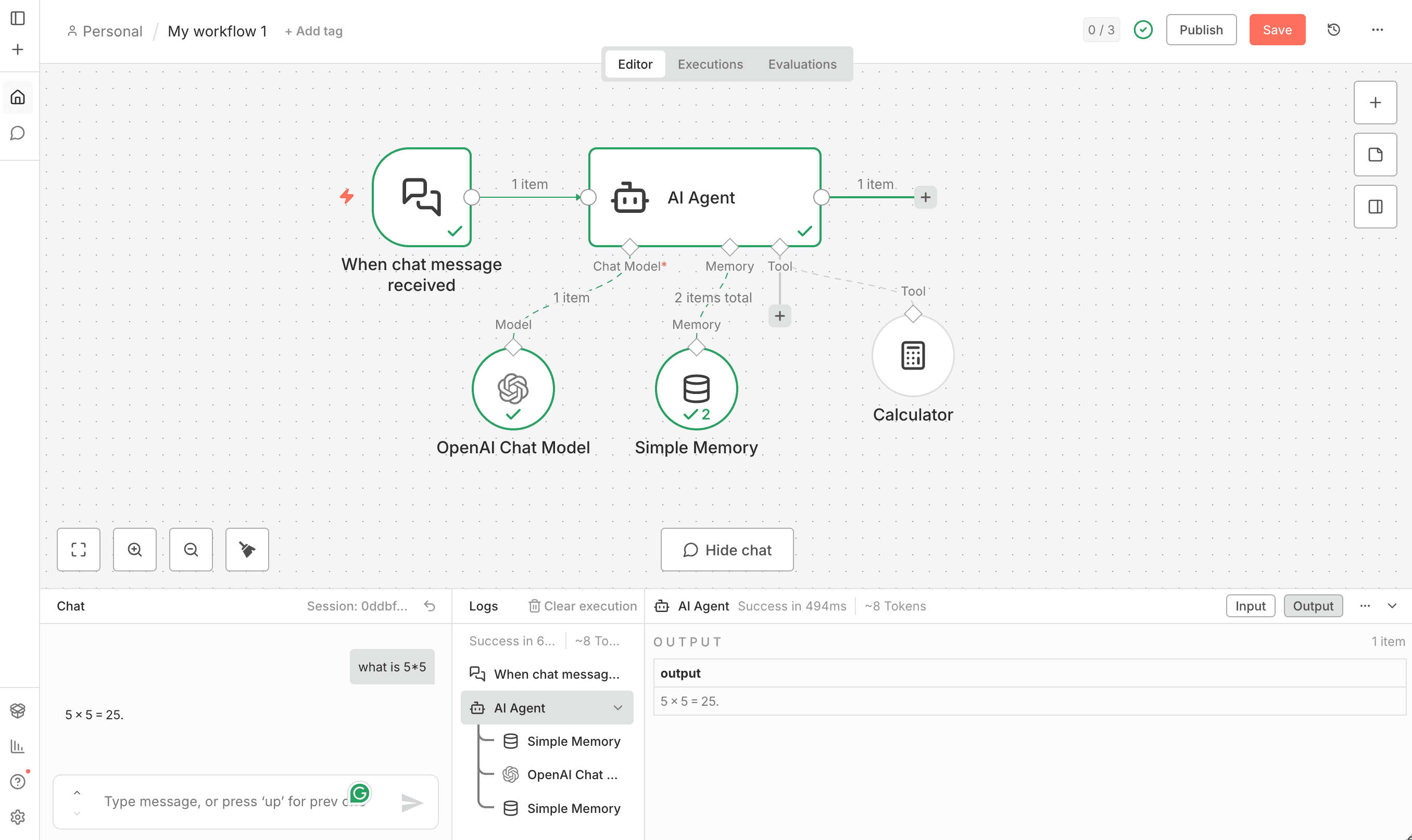
If the answer appears correctly, the integration is successful!
Last updated on