 Documentation
Chat AI (LLM models)
Introduction
Open WebUI is an AI-powered chatbot interface that provides secure, on-premises access to advanced language models for chatting, coding, document processing, and image generation. The same models are accessible via a documented REST API and can be connected to other applications such as Visual Studio. This guide provides instructions on logging in, using models, generating images, and creating an API key. Our AI services operate entirely within the secure e-INFRA CZ infrastructure—your data never leaves this environment.
Accessing Open WebUI
Prerequisites
To use the Open WebUI platform, you must have an active MetaCentrum account.
How to Get Access
The CERIT-SC AI services are integrated with the national research infrastructure MetaCentrum. You can apply for access through the 👉 MetaCentrum registration form.
Masaryk University students and staff only! Do you belong to Masaryk University and don’t have (or need) the MetaCentrum account yet? Quickly request access to our AI chat and API services:
👉 quick registration via Masaryk University account. Your request will be approved automatically.
⚠️ Note: This fast-track registration grants access only to the AI chat and API services. For full access to all Kubernetes services, a standard MetaCentrum account is still required.
Once your account is registered and active, you can access the platform directly: 👉 https://chat.ai.e-infra.cz
If you encounter any issues or need assistance, please contact us at k8s@cerit-sc.cz.
Logging In
- Open your web browser and navigate to https://chat.ai.e-infra.cz.
- Click on the Login button.
- Select the option to log in with e-INFRA CZ.
- Once logged in, you will be redirected to the Open WebUI dashboard.
Using AI Models
Open WebUI provides access to various AI models for text generation. To use them:
- After logging in, navigate to the chat interface.
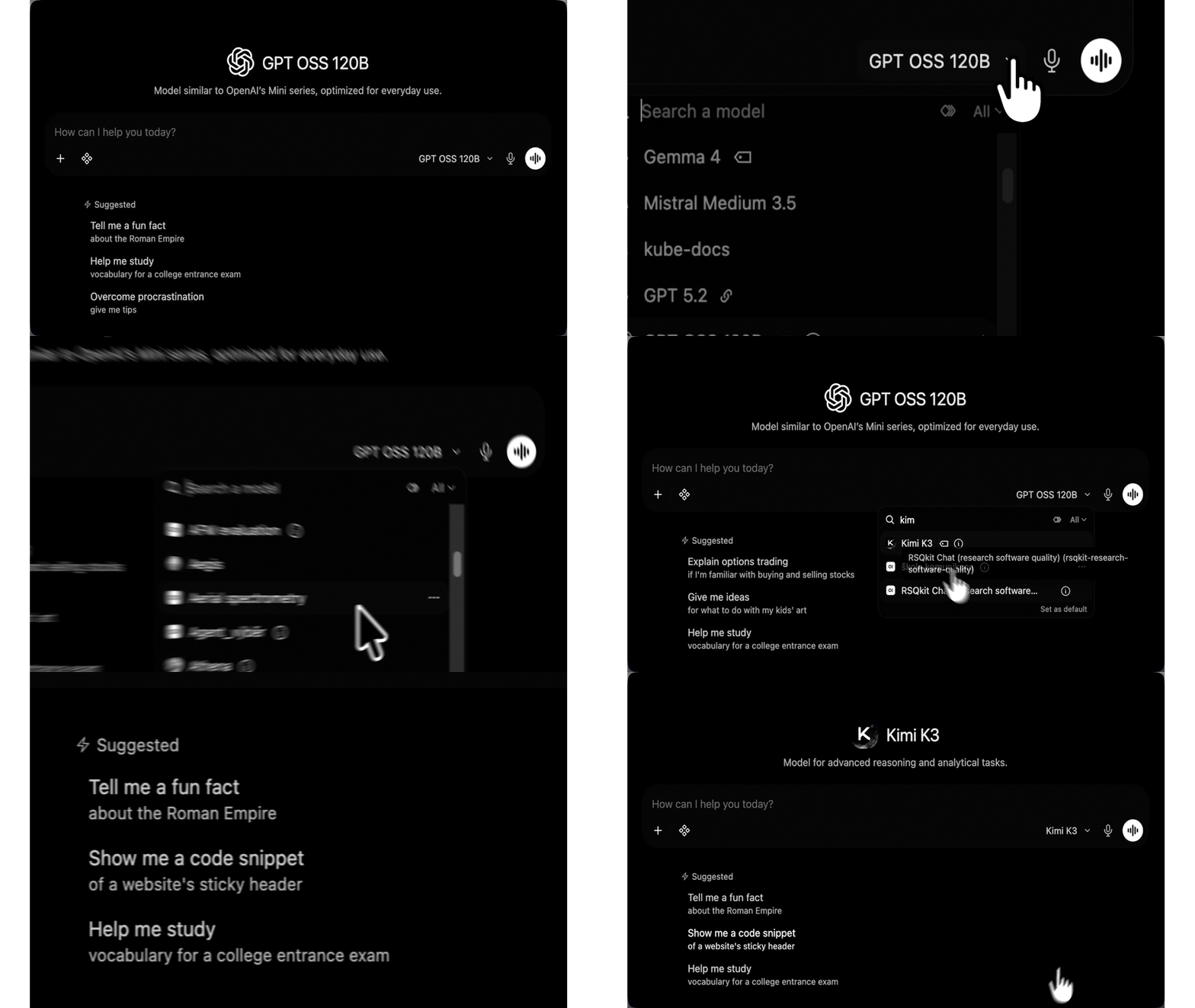
- Select a model from the available options in the dropdown menu.
- Type your query or request in the input field.
- Press Enter or click Submit to receive a response from the selected model.
- Be sure to scroll through the model list! More models are available below. 👇⬇️
Notice Regarding Benchmarking
Running independent benchmarks is not allowed without prior consultation. Please coordinate with us in advance. Because our LLM infrastructure is shared by many users simultaneously, running independent benchmarks during peak times creates bottlenecks and yields inaccurate data:
- Requests accumulate in a shared queue, meaning your performance metrics will reflect server wait times rather than actual model processing speed.
- Heavy testing restricts vital resources for peers relying on these models for active research.
Currently Available Models
The up‑to‑date status of all currently available models is displayed at https://llm.ai.e-infra.cz/status/
Curious about how many tokens your scripts and apps are burning through? You can now check your stats directly at https://llm.ai.e-infra.cz/usage.
- Available after logging in with your e-INFRA CZ account.
- The dashboard monitors tokens consumed exclusively through the API endpoint. Note: Tokens generated via the WebUI are not tracked here.
References
API token usage LLM monitoring status page
Effective June 30, 2026
We provide two kinds of models:
- Generative models – the chat / multimodal / reasoning models you talk to, listed below.
- Embedding models – instead of “talking,” these convert text into numerical vectors. They power Semantic Search, Recommendation Engines, and Retrieval-Augmented Generation (RAG), letting your applications reason over the meaning and context behind your data.
We no longer split models into “guaranteed” and “experimental” tiers. Because our GPU capacity is limited and shared, any model can be upgraded or replaced at any time once a newer, better-performing version becomes available. The one part of the offering that stays stable over the long term is the set of maintained aliases — short names such as kimi or deepseek that always keep pointing to a current model.
No specific model version is guaranteed to stay available. Because we run on limited, shared GPU hardware, we replace models with better ones as soon as they are available — usually at night, but possibly at any time — and retire the old exact model name. The hardware may also occasionally need maintenance (we have no backup of comparable scale) or be temporarily diverted to urgent high-priority tasks, during which availability can be suspended. We announce such changes on this page and via WebUI banners.
For reproducible work (e.g. a bachelor’s or master’s / diploma thesis): plan for a replacement happening right before a deadline or defense. We do not guarantee that a specific model will remain available throughout the semester.
- Call models through a maintained alias so your code keeps running even after the underlying model is upgraded.
- An alias keeps your code working, not your outputs — a newer model may answer differently, so do not assume results stay reproducible over time.
- Keep local copies of important results, and if exact reproducibility is critical, contact us at k8s@cerit-sc.cz to discuss options.
For exact, currently served model names, query the live model list via the API (see Creating an API Key) or check the status page. When accessing externally you must use either a maintained alias or the exact model name, e.g. qwen3.8-27b or deepseek-v4.1-flash.
Model names are case-sensitive and may include a quantization suffix.
Generative Models
| Model | API name | Capabilities | Context | Max output | Quant. | Source |
|---|---|---|---|---|---|---|
| GPT-OSS-120B | gpt-oss-120b | chat, tools | 128k | 32k | mxfp4 | openai/gpt-oss-120b |
| DeepSeek V4.1 Flash-1017 | deepseek-v4.1-flash | chat, tools | 1M | 64k | fp8 | deepseek-ai/DeepSeek-V4.1-Flash-1017 |
| GLM 5.3 | glm-5.3 | chat, tools | 1M | 64k | fp8 | zai-org/GLM-5.3 |
| GLM 5.3 Flash | glm-5.3-flash | chat, multimodal, tools | 1M | — | nvfp4 | nvidia/GLM-5.3-Flash-NVFP4 |
| Kimi K3 | kimi-k3 | chat, multimodal, tools | 1M | 48k | mxfp4 | moonshotai/Kimi-K3 |
| Qwen3.8 Flash Next | qwen3.8-flash-next | chat, multimodal, tools | 256k | 48k | fp8 | Qwen/Qwen3.8-Flash-Next-FP8 |
| Qwen3.8 27B | qwen3.8-27b | chat, multimodal, tools | 256k | 32k | fp8 | Qwen/Qwen3.8-27B-FP8 |
| Mistral Medium 3.5 | mistral-medium-3.5 | chat, multimodal, tools | 256k | — | fp8 | mistralai/Mistral-Medium-3.5-128B |
| Gemma 4 | gemma4 | chat, multimodal, tools | 256k | 32k | bf16 | google/gemma-4-31B-it |
| Whisper Large v3 (API only) | whisper-large-v3 | audio, speech recognition | 448 | — | FP16 | openai/whisper-large-v3 |
- Kimi K3 — Moonshot AI’s open-weight 2.8T-parameter Mixture-of-Experts (MoE) flagship model. Native multimodal with vision support, a 1M-token context window, and strong performance in long-horizon coding, reasoning, knowledge work, and agentic workflows.
- GLM 5.3 — 756B-parameter language model optimized for advanced reasoning, tool use, and multi-step agentic tasks.
- GLM 5.3 Flash — 320B-parameter (18B active) Mixture-of-Experts multimodal model from ZAI for reasoning, coding, and agentic tasks. The NVIDIA NVFP4 build reduces weight memory by about 3.3 times compared with BF16 and keeps benchmark accuracy close to the BF16 baseline.
- GPT-OSS-120B — OpenAI’s 120B-parameter open-weight language model offering strong general-purpose performance across reasoning, coding, and tool use.
- DeepSeek V4.1 Flash-1017 — efficient reasoning model with a small activated parameter count relative to leading proprietary models. Excels at mathematics, logical reasoning, and code generation.
- Qwen3.8 Flash Next — 180B (MoE) multimodal model with improved coding performance. fp8 quantization, 256k context, and a maximum output of 48k tokens.
- Qwen3.8 27B — 27B (dense) multimodal model with significantly improved coding performance. Supports images and videos, with configurable thinking for balancing speed and reasoning.
- Mistral Medium 3.5 — 128B multimodal model for text, coding, tool use, and agentic workflows.
- Gemma 4 — Google’s 31B multimodal model; useful for OCR/vision and general-purpose tasks.
- Whisper Large v3 — OpenAI’s 1.55B automatic speech recognition (ASR) and speech-translation model; supports 99+ languages with robust transcription even in noisy conditions. Available via API only.
Model Aliases
Because exact model versions change often, we maintain a set of short, version-independent aliases. These alias names are the part of our offering that stays stable over the long term: an alias always resolves to the current recommended model in its family, so code that calls an alias keeps working across upgrades without any changes on your side.
| Alias | Currently resolves to | Notes |
|---|---|---|
glm | glm-5.3 | latest GLM |
glm-5 | glm-5.3 | legacy alias |
kimi | kimi-k3 | latest Kimi |
deepseek | deepseek-v4.1-flash | reasoning off by default (can be enabled explicitly) |
deepseek-thinking | deepseek-v4.1-flash-thinking | reasoning on |
thinker | deepseek-v4.1-flash-thinking | |
mini | gpt-oss-120b | |
coder, agentic | qwen3.8-flash-next |
deepseek and deepseek-thinking point to the same underlying weights; they differ only in whether step-by-step reasoning is enabled by default.
Which model name should I use?
- Use an alias (e.g.,
kimi,deepseek) for long-term stability. Aliases always point to the latest recommended model version, ensuring your scripts don’t break over time.- Trade-off: Outputs may shift slightly as underlying models are upgraded.
- Use an exact name (e.g.,
kimi-k3) for version consistency. Recommended only when you need a specific, fixed model version.- Trade-off: Exact names are short-lived and will be retired when replaced, which will cause scripts using them to fail until updated.
Note on legacy aliases: The glm-5 alias still resolves to its updated equivalent for backward compatibility, but will be deprecated soon. Please update your code to glm.
Embedding Models
Embedding models are available via API endpoint: https://llm.ai.e-infra.cz/v1 using API tokens from Open WebUI.
| Model | Description |
|---|---|
| qwen3-embedding-4b | QWen3 embedding model with context size 40960 tokens and embedding vector size 2560. Multilingual model with support for more than 100 languages. |
| qwen3-reranker-4b | QWen3 reranker model with context size 40960 tokens |
| nomic-embed-text-v1.5 | Nomic AI embedding model with context size 512 tokens and embedding vector size 768. English only. |
| nomic-embed-text-v2-moe | Nomic AI embedding model with context size 512 tokens and embedding vector size 768. English only. Updated version. |
| mxbai-embed-large:latest | Mixedbread-AI embedding model with context size 512 tokens and embedding vector size 1024. English only. |
| multilingual-e5-large-instruct | Intfloat embedding model with context size 514 tokens and embedding vector size 1024. Multiple languages. |
Programming Languages Proficiency
We evaluated selected models using Aider Polyglot Benchmark. For reference, key scores are summarized below:
| Model | C++ Score | Go Lang Score | Java Score | Javascript Score | Python Score | Rust Score |
|---|---|---|---|---|---|---|
| DeepSeek V4.1 Flash-1017 | 88.5 | 87.2 | 72.3 | 93.9 | 91.2 | 96.7 |
| Gemma 4 (instant) | 53.8 | 51.3 | 34.0 | 44.9 | 44.1 | 46.7 |
| GLM 5.3 | 88.5 | 87.2 | 87.2 | 93.9 | 100.0 | 86.7 |
| GLM 5.3 Flash (NVFP4) | 92.3 | 92.3 | 83.0 | 91.8 | 91.2 | 66.7 |
| GPT-OSS-120B | 50.0 | 59.0 | 40.4 | 61.2 | 70.6 | 53.3 |
| Kimi K3 (think) | 100 | 92.3 | 93.6 | 91.8 | 97.1 | 93.3 |
| Mistral Medium 3.5 (high) | 50.0 | 59.0 | 44.7 | 57.1 | 67.6 | 46.7 |
| Qwen 3.8 27b (xhigh) | 80.8 | 76.9 | 70.2 | 85.7 | 85.3 | 83.3 |
| Qwen 3.8 Flash Next | 76.9 | 84.6 | 78.7 | 87.8 | 91.2 | 90.0 |
How Models are Added, Upgraded, and Removed
Added. New models are integrated after evaluation against industry-standard benchmarks, community feedback, and the latest open-source releases.
Upgraded and removed. Our GPU capacity is limited and shared, so we keep only the best-performing model in each family running on it. As soon as a newer model clearly outperforms one we host, we replace it — usually at night, but possibly at any time — and retire the old exact model name. We do not keep older versions around: large, resource-intensive models are removed promptly when their performance-to-cost ratio falls behind, so those GPUs can serve more capable models for the whole community.
Long-term stability. The stable part of the offering is the set of maintained aliases, not any individual model version. An alias name stays valid across upgrades and always points to a current model, so workflows that call an alias keep running. If you need to reproduce results from a specific model version over a long period, save those results locally and contact us at k8s@cerit-sc.cz — we cannot guarantee that any exact version remains available.
Data Privacy
Our AI platform is built as a secure, on-premise alternative to commercial AI services, ensuring that your interactions and data remain under the control of the national research infrastructure. While we maintain strict internal controls, it is essential to understand how your information is processed, stored, and protected within our infrastructure.
The WebUI environment is intended for general research and assistance and does not meet the regulatory security standards required for processing sensitive, classified, or personally identifiable information (PII). By using this service, the user acknowledges that the platform is not certified for protected data and agrees that any upload of such information is done at the user’s own discretion and risk. If your workflow requires the handling of highly sensitive information, classified data, or Personally Identifiable Information (PII), please contact us first to discuss secure alternatives.
Sensitive Data Workflows (API): For users working with sensitive or protected datasets, we recommend using direct API access. The underlying LLM inference engines run on dedicated infrastructure specifically designed to handle sensitive data. By using the API, you bypass the WebUI’s storage layer while still utilizing our secure, locally-hosted models.
For more details, see AI Data privacy section
Examples
Below is a step-by-step guide for leveraging LLM models in Open WebUI across various scenarios.
Image Generation
Generate AI images from text prompts.
- Select a text-generation model (e.g.,
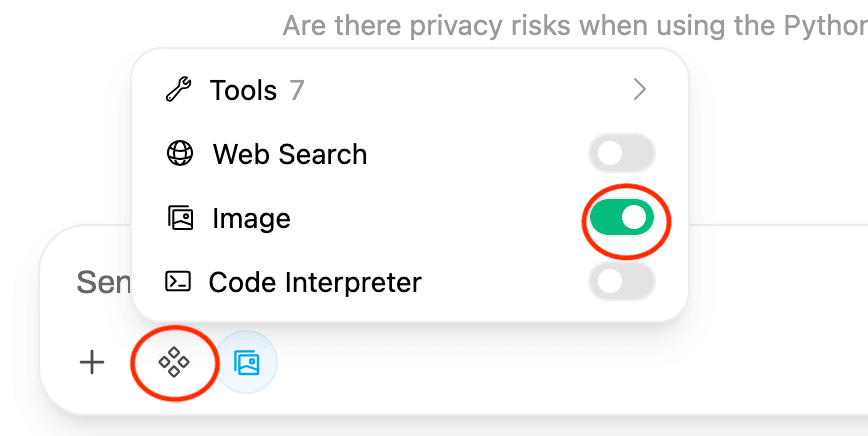
GPT-OSS-120B) from the top-left dropdown. - Click the Integration Icon below the prompt → toggle the Image slider to ON.
- Enter your text prompt (e.g.,
Draw a rainbow kitten). - Press Enter or click Send.
- Enter follow-up text instructions to modify the generated image. Press Enter again after each refinement prompt.
- Result: The generated image appears in the chat.

Picture Editor
Modify uploaded images using multimodal models.
- Select a multimodal model (e.g.,
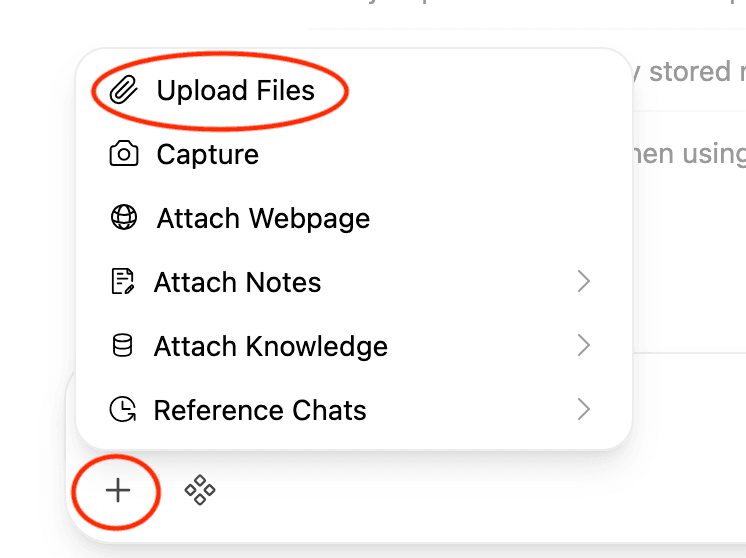
Mistral Medium 3.5) from the model dropdown. - Click the + icon → Upload Files → select an image (JPG/PNG)
- Upload the image you want to edit.
- Click the Integration Icon below the prompt → toggle the Image slider to ON.
- Enter your edit command: e.g.,
Add attacking crocodile. - Press Enter or click Send.
- Result: The edited image appears in the chat.
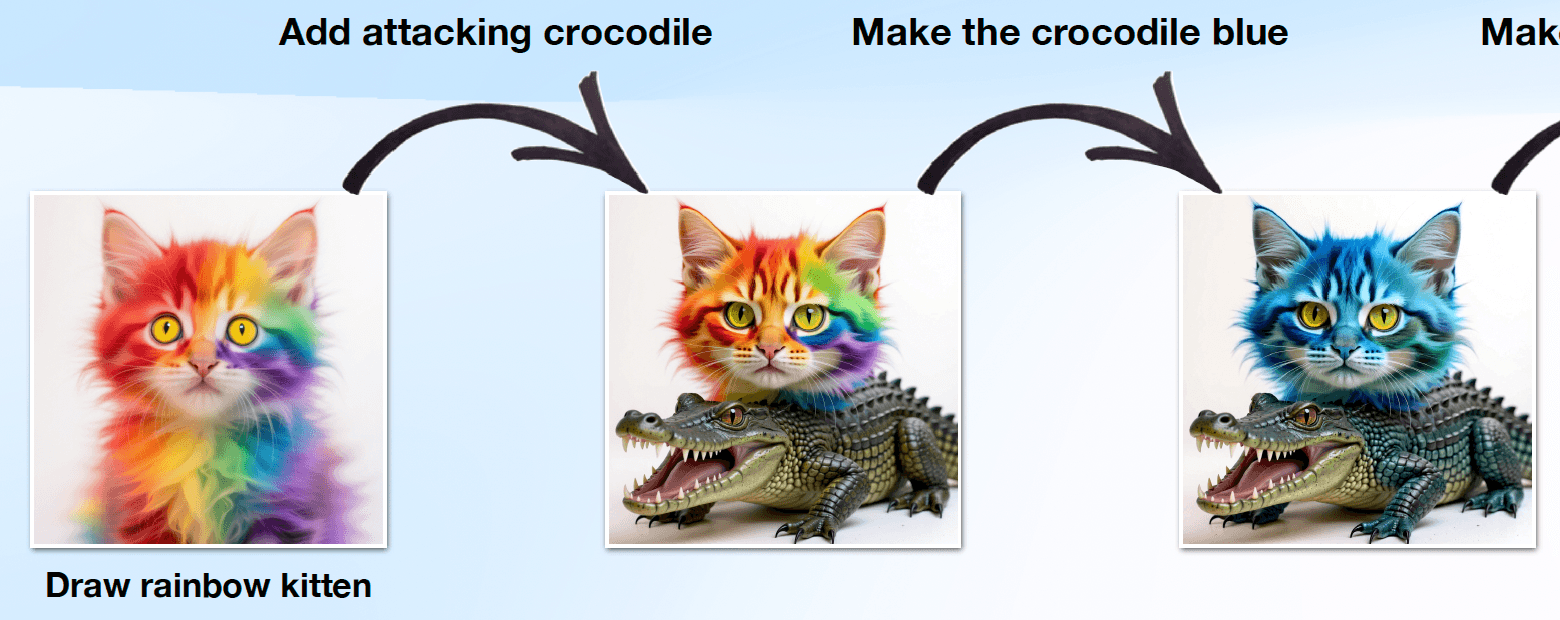
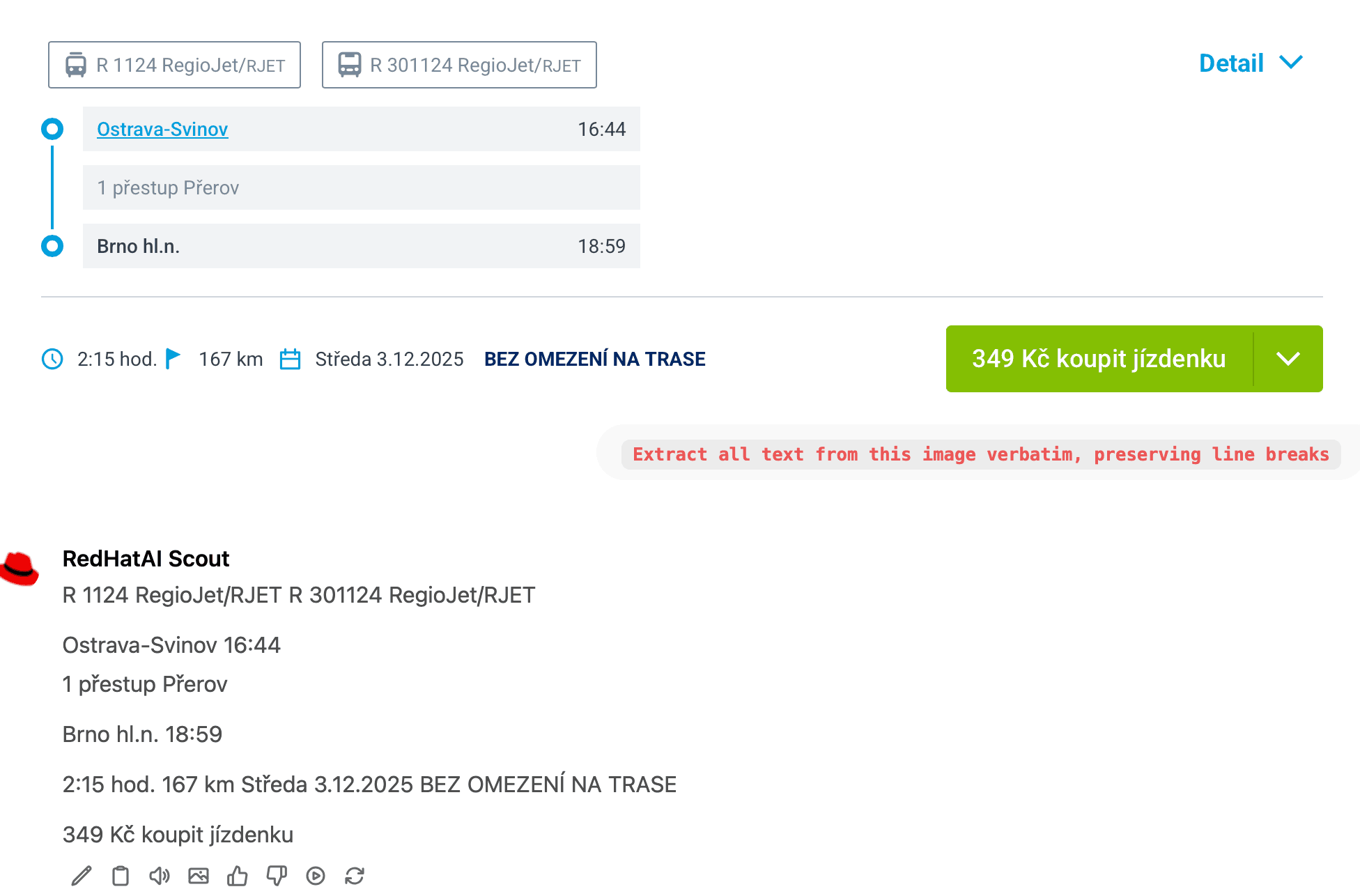
Image-to-Text (OCR Scanner)
Extract text from images.
- Select a text-generation model (e.g.,
Gemma 4orMistral Medium 3.5) - Click the + icon → Upload Files → select an image (JPG/PNG)
- Upload an image containing text (e.g., scanned document, PDF, or photo).
- Enter an OCR instruction: e.g.,
Extract all text from this image verbatim, preserving line breaks. - Press Enter or click Send.
- Result: The extracted text appears as a response.
Python Sandbox for Math/Code Tasks
Execute Python for math/code tasks (not general programming).
- Select any model supporting tools (e.g.,
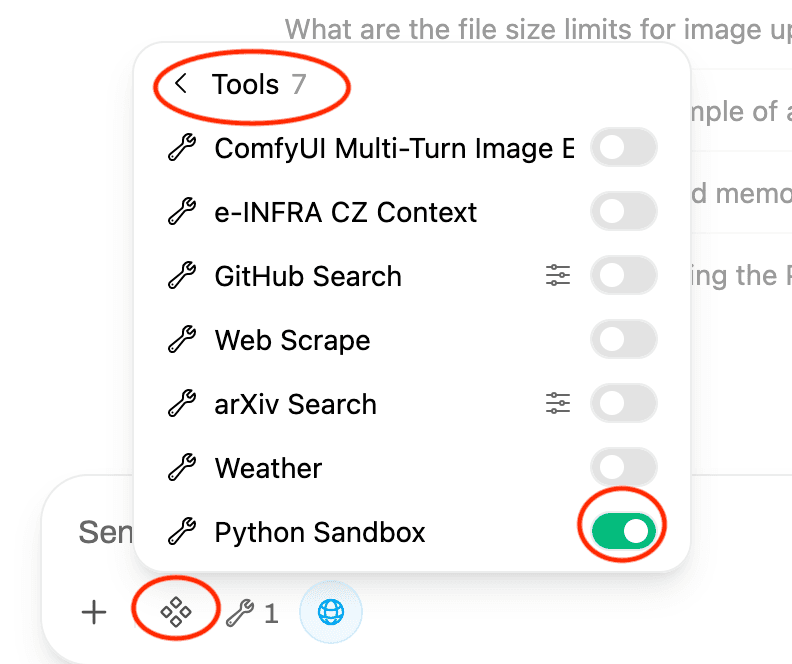
GPT-OSS-120B). - Click the Integration Icon → Tools → toggle the Python Sandbox to ON.
- Submit your request: e.g.,
Solve this Sudoku puzzle using Python: [[5][3][0][0][7][0][0][0][0], ...]. - Press Enter or click Send.
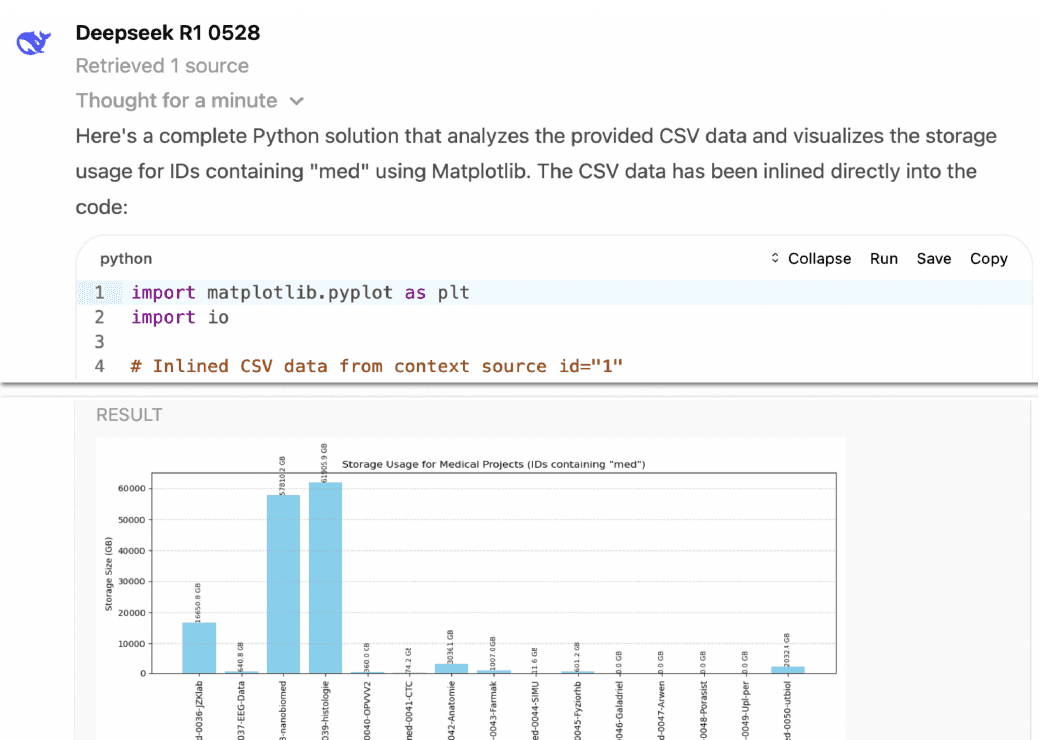
- Result: Text output (e.g., solved puzzle or code in Python for data analytics)
Users can easily upload CSV files and request analyses. The application generates ready-to-run Python code for direct execution in the browser. Although the sandbox does not render graphs, it produces complete visualization code, enabling users to RUN and display results in their preferred external environment.
⚠️ General programming is disabled. Use exclusively for specific problems where Python can provide an efficient text-based solution (e.g., mathematical calculations, data transformations).
Memorize (Personalization)
Store user-specific context (e.g., preferences, credentials). Example: After storing “I prefer Python over MATLAB”, future coding suggestions will prioritize Python.
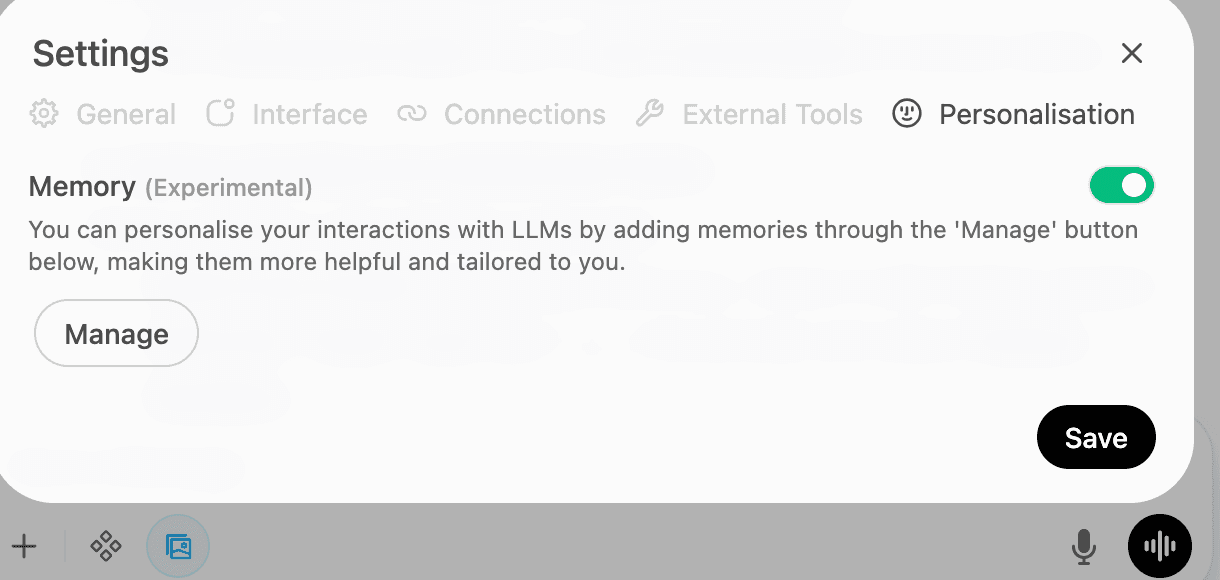
- Enable Memory:
- Click your username (bottom-left) → Settings → Personalization → Memory Tab
- Toggle Memory on
- Select a memory-capable model:
GPT OSS 120B with Memory - Adding Memories:
- Manual: Click Manage → add key/value pairs: Project: CFD optimization; Deadline: 2025-12-01
- Chat Command: Type
remember [fact](e.g.,remember my MetaCentrum login is xnovak12).
- The model confirms storage.
- Context storage works only with the
GPT OSS 120B with Memorymodel.
Memories are applied automatically to all supported models once enabled.
Creating an API Key
To use Open WebUI’s API, you need to generate an API key.
- Go to the Settings section of the Open WebUI interface.
- Navigate to the Account (Účet).
- Click on API keys (display).
- Ignore JWT token, select API key, and either generate a new one or display the existing one.
- Copy the generated API key and store it securely.
- Use this key in API requests to authenticate and access Open WebUI services.
- Endpoint API is: https://llm.ai.e-infra.cz/v1/.
Open Web UI’s API usage is described in the chapter OpenAI API
Knowledge Function (Alpha)
Open WebUI includes an experimental Knowledge Function, which is essentially a RAG (Retrieval-Augmented Generation) system. This allows users to upload custom texts and query a model that generates answers based on that content.
Currently, the Knowledge Function only supports global configuration, meaning a single embedding model is used for all stored texts. We are still evaluating which embedding models are best suited for this purpose. A key limitation is that changing the embedding model requires all previously uploaded texts to be reprocessed, as RAG relies on consistent embeddings to function correctly. For this reason, the feature is not recommended for production use and is intended primarily for testing and preview.
Another challenge lies in finding suitable embedding models that support the Czech language and large input contexts. Most available models are limited to a 512-token input, which is suboptimal for longer texts, as it requires splitting the content into small fragments—often too small to provide high-quality answers.
While we could integrate external embedding models like OpenAI’s text-embedding-3-small, this approach would compromise data privacy, as it involves sending data to a third-party service.
A Practical Guide to Using AI Chat
As a scientist, you’re likely no stranger to seeking out information and guidance to help you with your work. When interacting with AI chatbots, effective communication is key to getting the results you need. In this guide, we’ll walk you through the best practices for crafting high-quality prompts and engaging in productive conversations with AI chatbots.
Why Proper Prompting Matters
A poorly written prompt can lead to a subpar response. AI chatbots are only as good as the input they receive. By providing clear and concise prompts, you can unlock more accurate and relevant results.
Communicating Effectively with AI
Interacting with chatbots is similar to communicating with humans. The quality of the response depends on the clarity and specificity of your prompt. Don’t worry about complexity—focus on describing your task and asking questions.
Basic Principles of Communication
- Define Your Goal: Clearly state what you want to achieve. The more specific you are, the better the response will be. Avoid vague or general prompts, as they can lead to disappointing results.
- Provide Context: Offer relevant details that can help the AI understand the task and provide a more accurate response. Context helps the AI grasp the purpose and significance of the task.
- Specify the Output: Indicate how you want the response to be formatted, including length, style, and tone. This ensures you receive a response that meets your needs.
- Choose an appropriate language model: Try different LLM models and compare the results.
Let AI Help You Craft Prompts
- Start with a Basic Idea: Instead of struggling to come up with a prompt, ask the AI chatbot to help you create one. For example: “Create a high-quality prompt for a chatbot that will help me write engaging articles on productivity topics for my colleagues.”
- Specify the Purpose: Add context about how you plan to use the prompt, such as: “I’ll use this prompt to write articles on productivity topics for my colleagues.”
- Refine the Result: The AI will provide a complete prompt that you can use as-is or refine to better suit your needs.
Engaging in Productive Conversations with AI
- Start with a Strong Prompt: Begin with the best prompt you can craft, using the techniques outlined above.
- Evaluate the Response: Review the response and identify areas for improvement. AI chatbots may not always provide exactly what you want on the first try.
- Refine Your Request: Continue the conversation by providing specific feedback, such as: “Make it more concise” or “Write it in a more formal tone.”
- Repeat the Process: Iterate until you achieve the desired result. Ask questions, provide feedback, and refine your prompt to get the best possible response.
Improving Prompts with Roles and Details
- Assign a Role to AI: Provide context by assigning a role to the AI, such as: “Act as an expert copywriter with 15 years of experience.” This helps the AI provide more relevant and sophisticated responses.
- Describe the Problem in Detail: Clearly explain the problem or task you want the AI to help with. Provide as much context as possible to ensure the AI understands your needs.
- Specify the Output Format: Indicate how you want the response to be formatted, such as a list, table, or paragraph.
- Define the Tone and Style: Specify the tone and style you want the AI to use, such as: “Write it in a friendly, approachable tone” or “Use a formal, technical tone.”
Using Examples for Better Results
- Provide a Sample: Offer a sample or example of what you’re looking for. This helps the AI understand your needs and provide a more accurate response.
- Use Positive Instructions: Instead of telling the AI what not to do, focus on what you want it to do. For example: “Use simple language” instead of “Avoid technical jargon.”
- Avoid Conflicting Instructions: Be consistent in your prompts and avoid contradictory instructions.
- Let AI Ask Questions: Encourage the AI to ask questions if it needs clarification or more information. This can help ensure you receive a more accurate and relevant response.
Last updated on