 Documentation
Orthovenn3
Deploying OrthoVenn 3 via Rancher
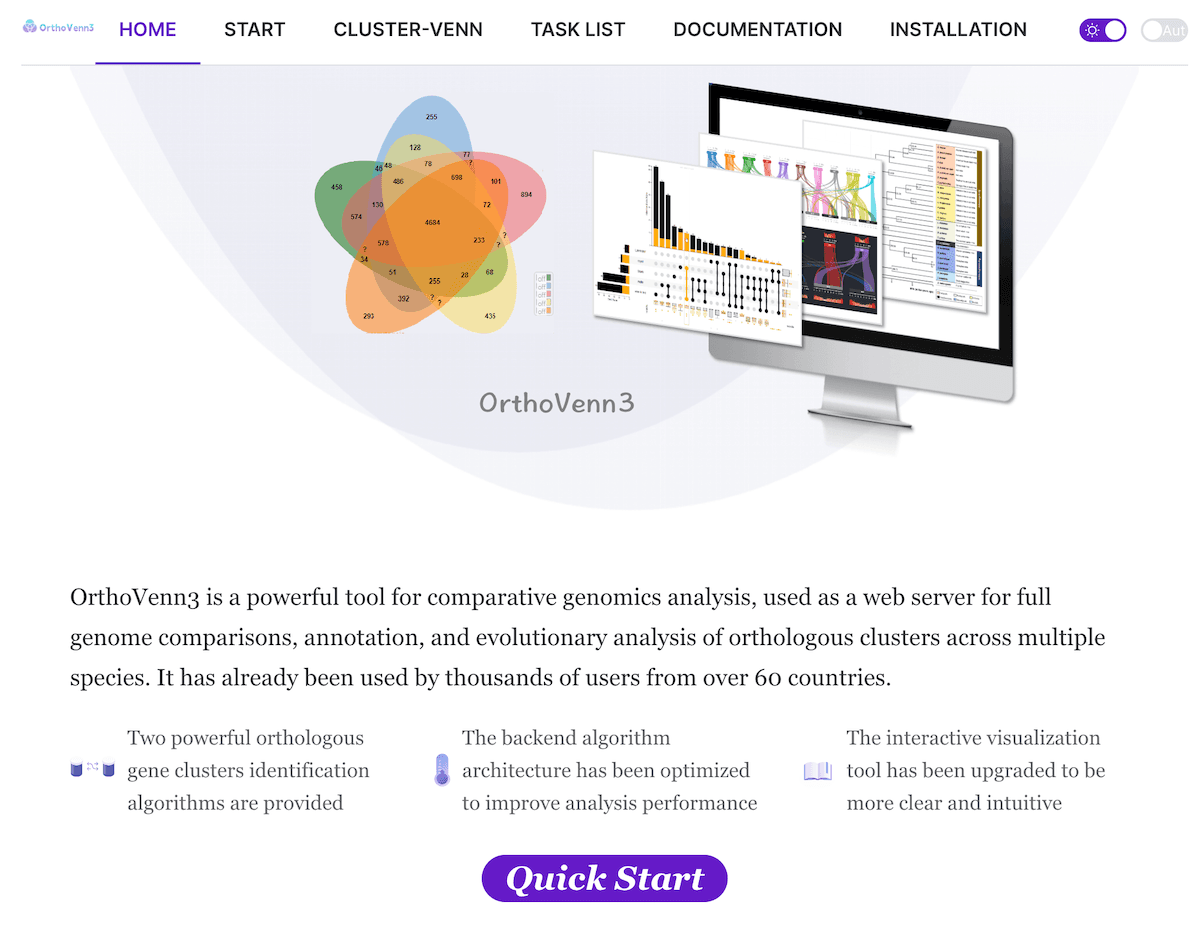
OrthoVenn 3 is a web-based tool for whole-genome comparison across multiple species. It identifies orthologous gene clusters, visualizes overlaps via Venn diagrams, and provides functional enrichment analysis (GO terms and KEGG pathways) for selected gene subsets. Unlike the public web service, which is restricted to 12 species, this deployment supports an unlimited number of species, constrained only by the underlying node’s compute capacity.
This guide outlines how to deploy, configure, and manage OrthoVenn 3 using the Rancher application catalog in Kubernetes.
You can run a desktop application by following the steps below.
Installation Steps
-
If you are not already logged in, log in to rancher.cloud.e-infra.cz, see Rancher section.
-
Navigate to Apps/Charts in the Rancher dashboard
-
Search for OrthoVenn 3 and install a new version (upper right corner).
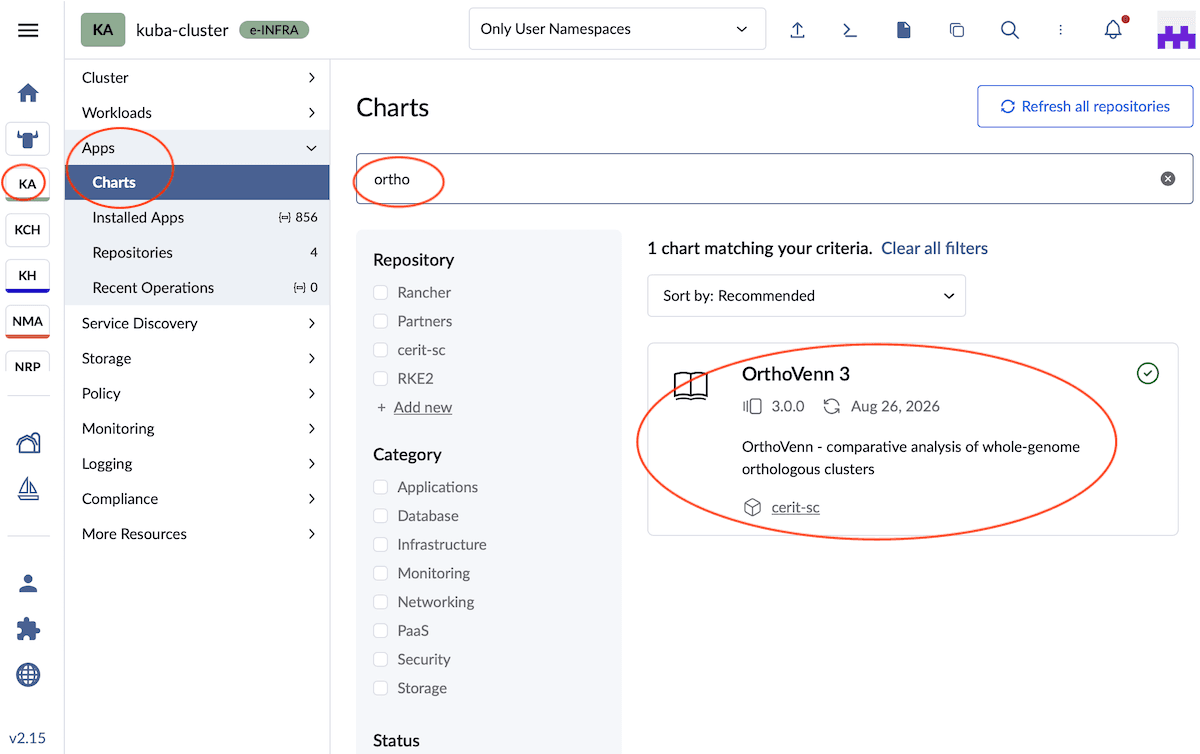
-
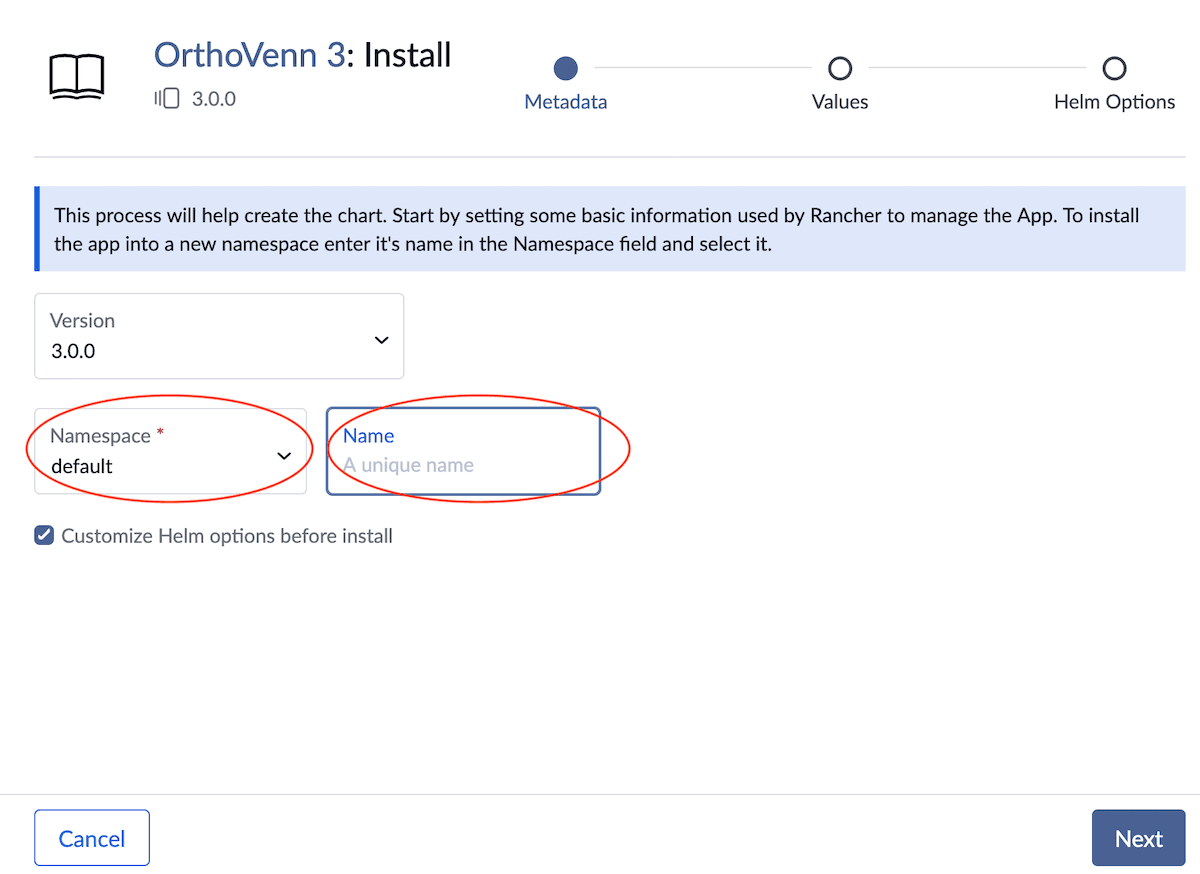
Fill in the form:
- namespace (do not use default, choose your namespace from the menu) and name
Underscore in name is not allowed: The name field cannot contain underscores (_). Only alphanumeric characters (a–z, 0–9) and hyphens (-) are permitted.
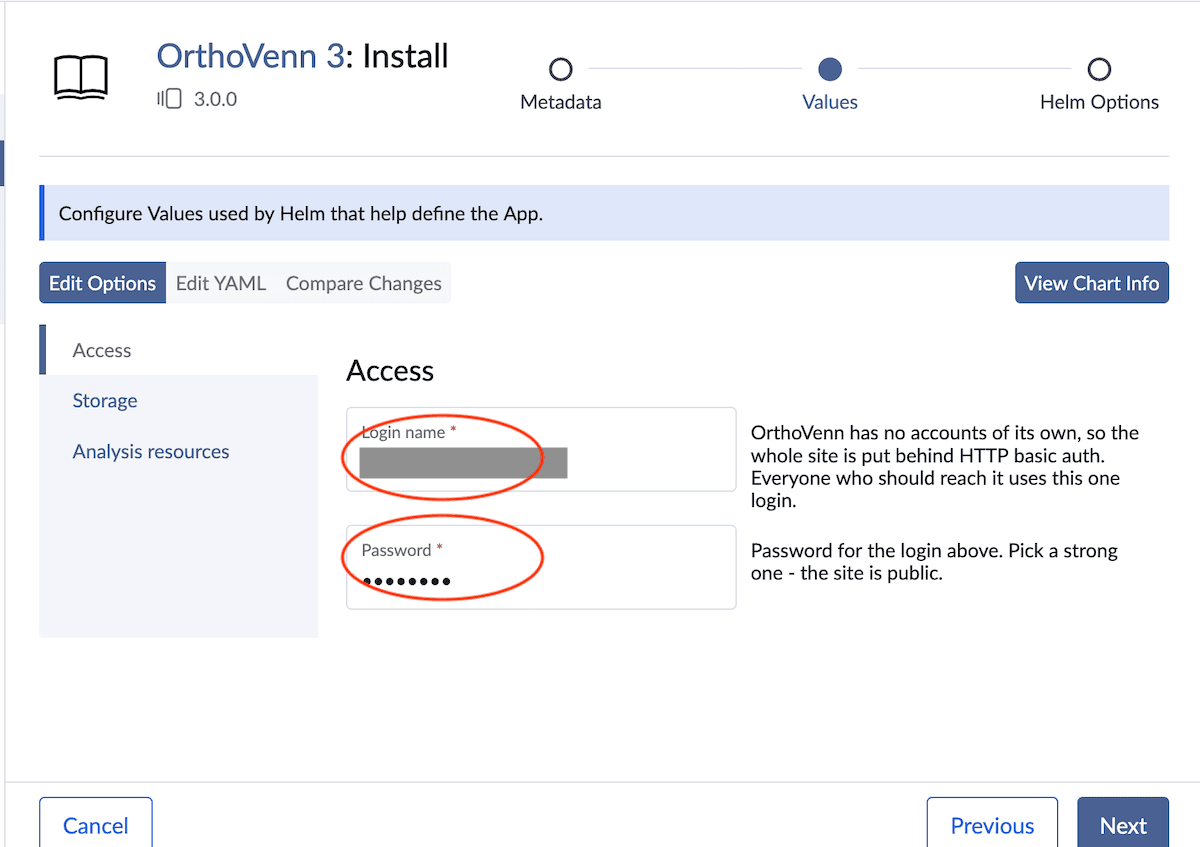
- login name and password
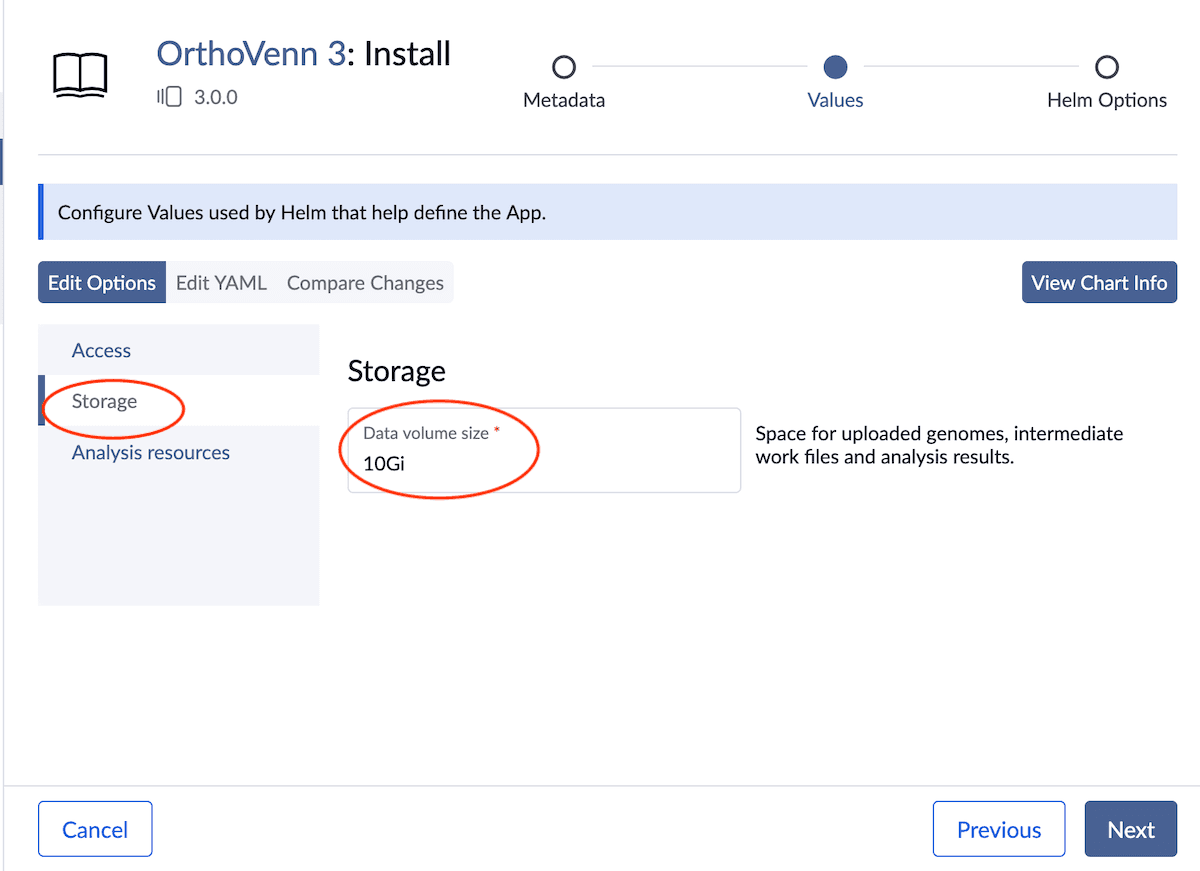
- data volume size — how much room you want for genomes and results
- how much CPU and memory the analyses may use
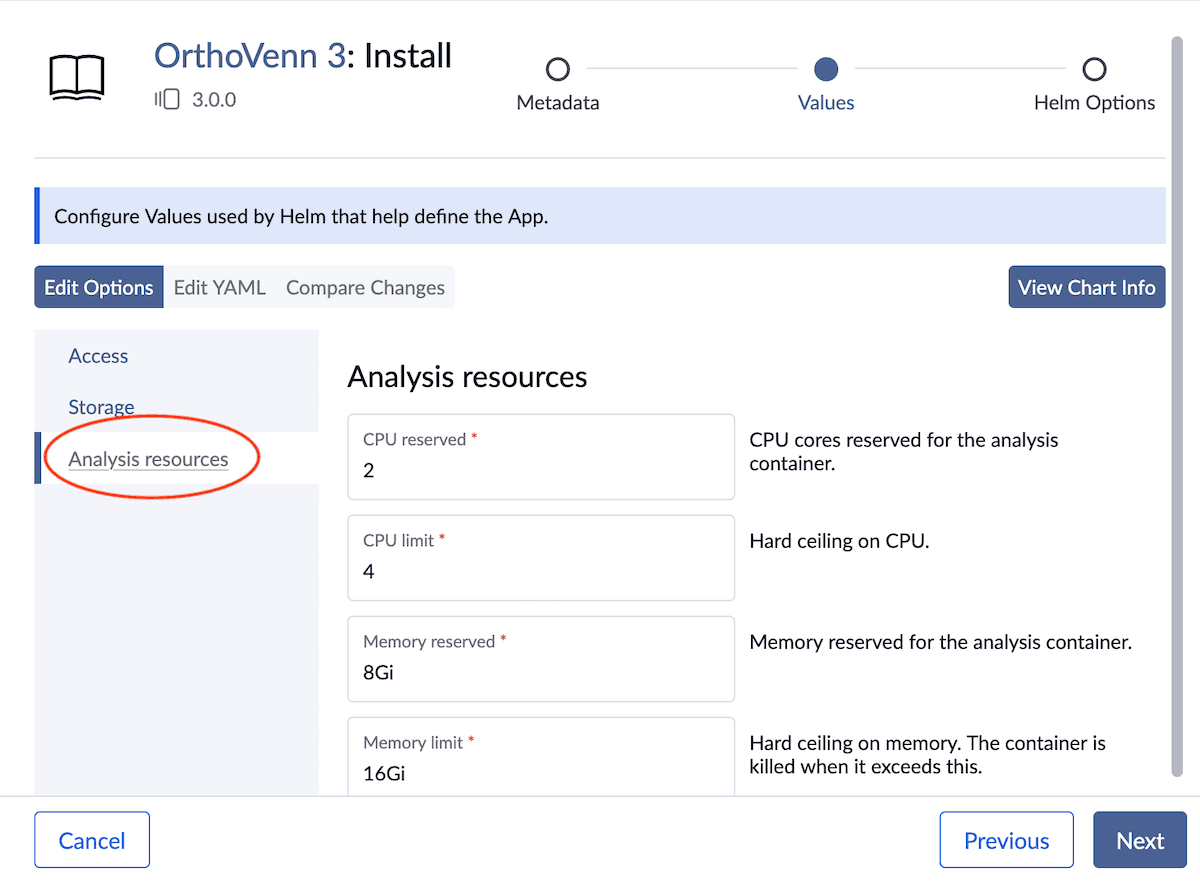
Click Install and wait. The first start takes a few minutes.
Note: Remaining parameters are preconfigured with recommended defaults and typically do not require modification.
Access & URL Routing
You do not have to pick one. The app gets its address from the name you gave it and the namespace it went into:
https://<name>-<namespace>.dyn.cloud.e-infra.cz-
Example: An instance named
orthodeployed in themylabnamespace is accessible athttps://ortho-mylab.dyn.cloud.e-infra.cz. -
Alternative Suffixes: Depending on cluster policies, the domain suffix may end in
.dyn.cloud.trusted.e-infra.cz. Check the Notes tab in Rancher post-deployment for the exact URL. -
TLS/SSL: Certificates are provisioned automatically via cert-manager; HTTPS is enabled by default.
Login In
OrthoVenn has no user accounts. Instead, the whole site asks for the login name and password you entered during install — the browser prompts for them the first time someone opens the page. Everyone shares that one login, so treat it as a door key rather than a personal account.
If you forget the password, reinstall or edit the app in Rancher and set a newone.
Storage
The application provisions two persistent volumes:
- a small one database volume for internal application data.
- a larger data volume for uploaded genomes, working files and finished results
The data volume handles the majority of the storage and cannot be downsized later If you anticipate working with large genomes or datasets, allocate more storage during installation than you think you will need.
Both volumes are retained automatically upon uninstallation to prevent accidental data loss. Reinstalling the app with the same name and namespace will reattach the existing volumes and restore your data.
Uninstallation & Cleanup
Delete Application: In Rancher, navigate to Apps -> Installed Apps, select OrthoVenn 3, click the more options menu ⋮ at the end of the row, and select Delete.
Note: Uninstalling the application from Rancher removes the workload but preserves the persistent volumes.
To permanently release the storage, navigate to Rancher’s Storage -> PersistentVolumeClaims section and manually delete the two associated Persistent Volume Claims (named with the suffixes -db and -home).
Note that this deletion is irreversible.
Last updated on